Mac Screenshot Resolution: Why Your Screenshot Has Twice the Pixels You See

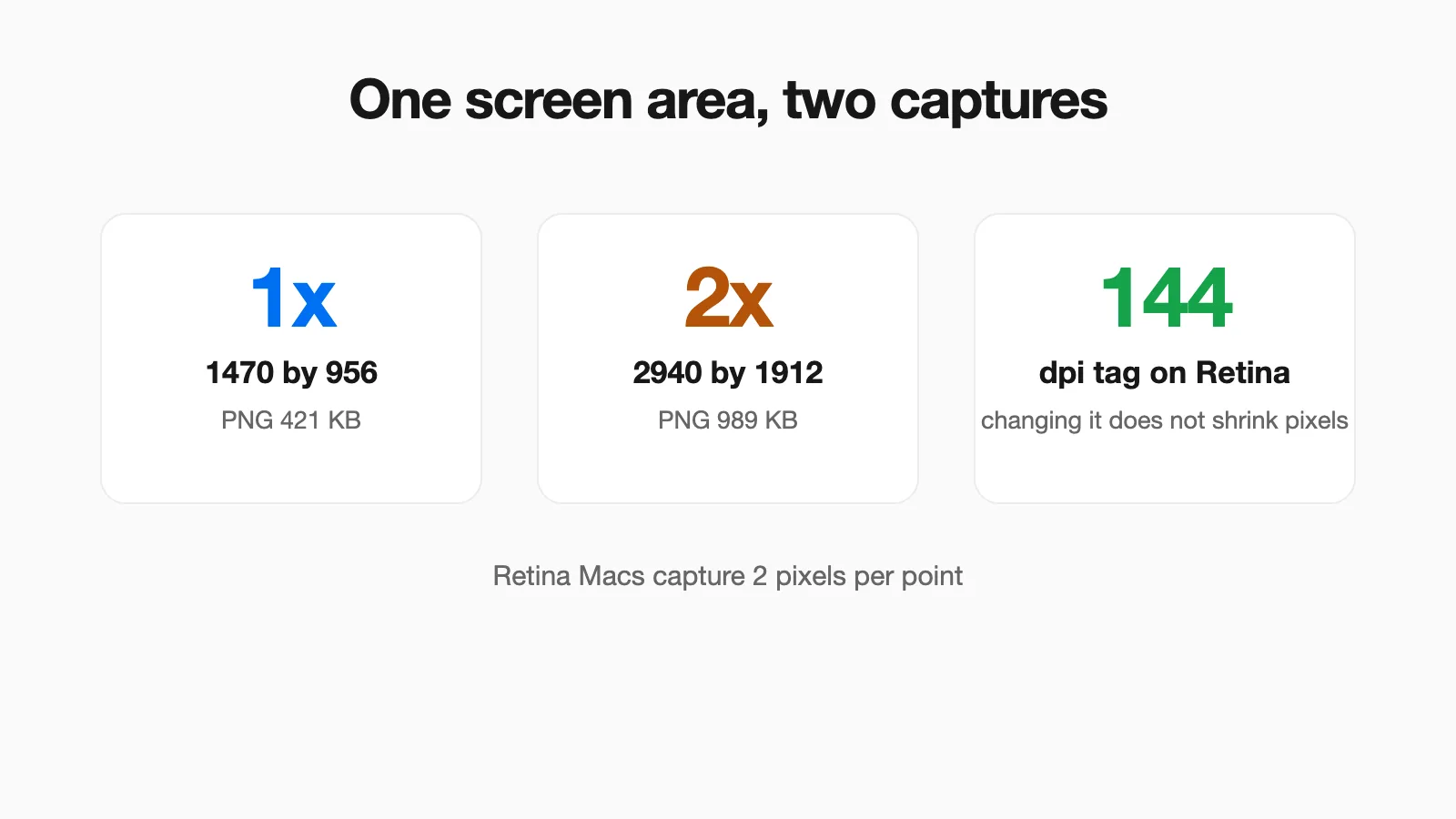
You take a screenshot of a small window, paste it into a document or a form, and it comes out huge. Or an upload page rejects it for being 3000 pixels wide when your screen is nowhere near that. The cause is the same each time: a Mac with a Retina display records two pixels for every one point of screen space, so every screenshot has twice the width and height you are looking at.
This guide shows the numbers on a real Retina Mac, what that does to file size, why the DPI setting will not fix it, and how to produce a normal-size copy when you need one. I also say plainly which parts I could not capture myself.
Points, Pixels and the Two Numbers Your Screen Has
A Retina Mac describes its screen in points, which is the unit apps are laid out in, and draws each point using a 2 by 2 block of pixels. On the MacBook I used, macOS reports a desktop of 1470 by 956 points (read from Finder's desktop bounds), while System Information lists the panel at 2560 by 1664 pixels. The two figures are different on purpose. The default display mode draws the desktop at twice the point size, 2940 by 1912, and then scales that to the physical panel.
That gives three numbers that people mix up when they search for the resolution of a Mac screenshot:
| Number | On my Mac | What it means |
|---|---|---|
| Points | 1470 by 956 | The layout size apps and websites see |
| Pixels in a 2x capture | 2940 by 1912 | Twice the points in each direction |
| Physical panel | 2560 by 1664 | The hardware grid. Not the size of a screenshot |
So the rule of thumb is simple. Take the size of the area you captured in points and double it. A capture that looks 400 points wide will be an 800 pixel wide image. Changing the display scaling in System Settings changes the point size, so it changes how many pixels a full-screen capture has.
What I Could and Could Not Measure
I will be direct about the limits of this test. The screenshot command in my shell was blocked by the Mac's screen recording permission, so I could not capture the screen with the built-in tool for this article. To get a real 2x image of a real page, I used headless Chrome with a 1470 by 956 window and a device scale factor of 2, which renders at the same 2x ratio a Retina display uses. I treated that as a stand-in for a Mac capture and recorded the dimensions it produced: 2940 by 1912.
What I could check on the Mac itself was the metadata of screenshots that were already saved there. Four Retina screenshots in my folders were each stamped 144 dpi, which is exactly twice the 72 dpi of a standard display and is how Retina captures are labeled. That matches the 2x rule, but I did not verify the pixel size of a fresh full-screen capture from the Mac's own tool, so treat the 2940 by 1912 figure as the expected result and confirm it on your machine with the checks below.
What 2x Does to File Size
Doubling both dimensions quadruples the pixels, and the file follows. I captured the same web page area at 1x and at 2x:
| Same page area | Pixels | PNG size | JPEG quality 85 |
|---|---|---|---|
| 1x capture | 1470 by 956 | 420,991 bytes | 246,610 bytes |
| 2x capture | 2940 by 1912 | 989,464 bytes | 630,367 bytes |
The pixels went up fourfold but the files only grew by about 2.4 times as PNG and 2.6 times as JPEG. Compression absorbs some of the extra pixels, because a sharper rendering of the same text has more smooth edges to predict. The cost is still real: a single full-width capture crosses 900 KB, which matters for email limits and upload forms. If you need a specific size, How to Reduce an Image to 100 KB, 200 KB or 1 MB gives measured width and quality settings for that.
Changing the DPI Does Not Change the Size
The most common wrong fix is to set the image to 72 dpi, hoping it will shrink. I tested it. I took the 2940 by 1912 capture, set it to 144 dpi, then set it to 72 dpi with the sips command that ships with macOS:
| Step | Pixels | DPI tag |
|---|---|---|
| Start | 2940 by 1912 | 144 |
| After setting 72 dpi | 2940 by 1912 | 72 |
| After resampling to 1470 wide | 1470 by 956 | 144 (unchanged tag) |
The DPI value is only a note that tells a printer or a layout program how large to draw the image. The pixels stayed exactly the same, so websites, upload forms and file size checks all treat the image as before. Only resampling reduced the pixel count. Notice too that the DPI tag stayed at 144 after resampling, so the file is half the pixels but still says 144. That is harmless for a web upload, but it means a layout program may draw it at the wrong physical size, which is the other reason a pasted Retina screenshot can look oversized in a document.
How to Check a Screenshot's Real Size
- Finder: select the file, press Command+I, and read Dimensions under More Info.
- Preview: open the file and choose Tools, Show Inspector, then the General tab.
- Terminal:
sips -g pixelWidth -g pixelHeight -g dpiWidth yourfile.pngprints the pixels and the DPI tag. I used this for every measurement above. - In your browser: after you paste an image into PasteDownloadApp, the line under the preview shows its pixel dimensions and file size, which is a quick way to see what the clipboard held.
How to Get a 1x Copy
You cannot ask the screen for a smaller capture, so shrink the file after you take it. Pick whichever of these suits you:
- Preview: open the screenshot, choose Tools, Adjust Size, make sure Resample image is ticked, set the unit to pixels and halve the width with the proportions locked. Then save. I did not click through this dialog in the test, so check the checkbox before you save.
- Terminal, one file:
sips --resampleWidth 1470 shot.png --out shot-1x.png. On my test file this changed 2940 by 1912 into 1470 by 956. - Terminal, a whole folder: run
sips --resampleWidth 1470 *.pngin the folder. It rewrites those files in place, so work on copies.
One warning from the measurements: sips re-encodes the PNG, and the result is not always smaller. Setting the DPI tag alone grew my 989,464 byte file to 1,089,913 bytes, about 10 percent, because its PNG encoder compressed less tightly than the one that made the original. If file size is the goal, resample and then also convert to JPEG, or check the size afterwards.
When to Keep the 2x Image
The extra pixels are not waste. Keep the full-size capture when:
- the screenshot will be shown on Retina screens, where a 1x image looks softer than the text around it;
- you may zoom in on small text, code or interface details;
- you are submitting a bug report where the detail helps the reader.
Use a smaller copy when the image goes to a size-limited form, a plain email, a web page that will display it at its point size, or a document where it appears at twice the size you wanted. For the format side of this decision, see How to Convert PNG to JPG on Mac, and for where the files land in the first place, Where Do Screenshots Go on Mac.
Sources and Method
- Measurements were made on October 26, 2026, on a MacBook running macOS 26.4.1. The point size comes from Finder's desktop bounds. The panel size comes from System Information.
- The 1x and 2x images are captures of the same public web page at a 1470 by 956 window, taken with headless Chrome at device scale factors of 1 and 2. They are a stand-in for a Mac screenshot, not output from the Mac's screenshot tool, which was blocked by a permission in my shell.
- The 144 dpi observation comes from reading the metadata of four Retina screenshots already saved on my Mac. I only read their pixel size and DPI tag.
- The DPI and resampling results come from the
sipstool that ships with macOS. - Not tested: the exact dimensions from the Mac's own screenshot tool on other displays, the Preview Adjust Size dialog, and non-Retina or external monitors. If your display uses a different scaling, your numbers will differ from the ones here, though the 2x rule should hold on a Retina screen.
Frequently Asked Questions
What resolution is a Mac screenshot?
On a Retina Mac it is twice the width and height of the area you captured, measured in the screen's points. A 1470 by 956 point window area becomes a 2940 by 1912 pixel image. The screenshots on my Mac are tagged 144 dpi, which is twice the 72 dpi of a standard display.
Why is my Mac screenshot so big when I paste it into a document?
It holds four times as many pixels as a 1x capture of the same area. In my test the 2x PNG was 989,464 bytes and the 1x PNG was 420,991 bytes. Resize it before use or export a smaller copy.
How do I check a screenshot's pixel dimensions on a Mac?
Select the file in Finder and press Command+I, then read Dimensions under More Info. You can also open it in Preview and choose Tools, Show Inspector, or run sips -g pixelWidth -g pixelHeight on the file in Terminal.
Does changing the DPI make a screenshot smaller?
No. I changed a 2940 by 1912 screenshot from 144 dpi to 72 dpi and it was still 2940 by 1912 pixels. DPI is only a label for printing and layout. To make the image smaller you must resample it to fewer pixels.
How do I make a 1x copy of a Retina screenshot?
Resample it to half the width. In Terminal, sips --resampleWidth 1470 file.png turned my 2940 by 1912 screenshot into a 1470 by 956 one. Preview's Tools, Adjust Size does the same with a dialog.
Related Guides
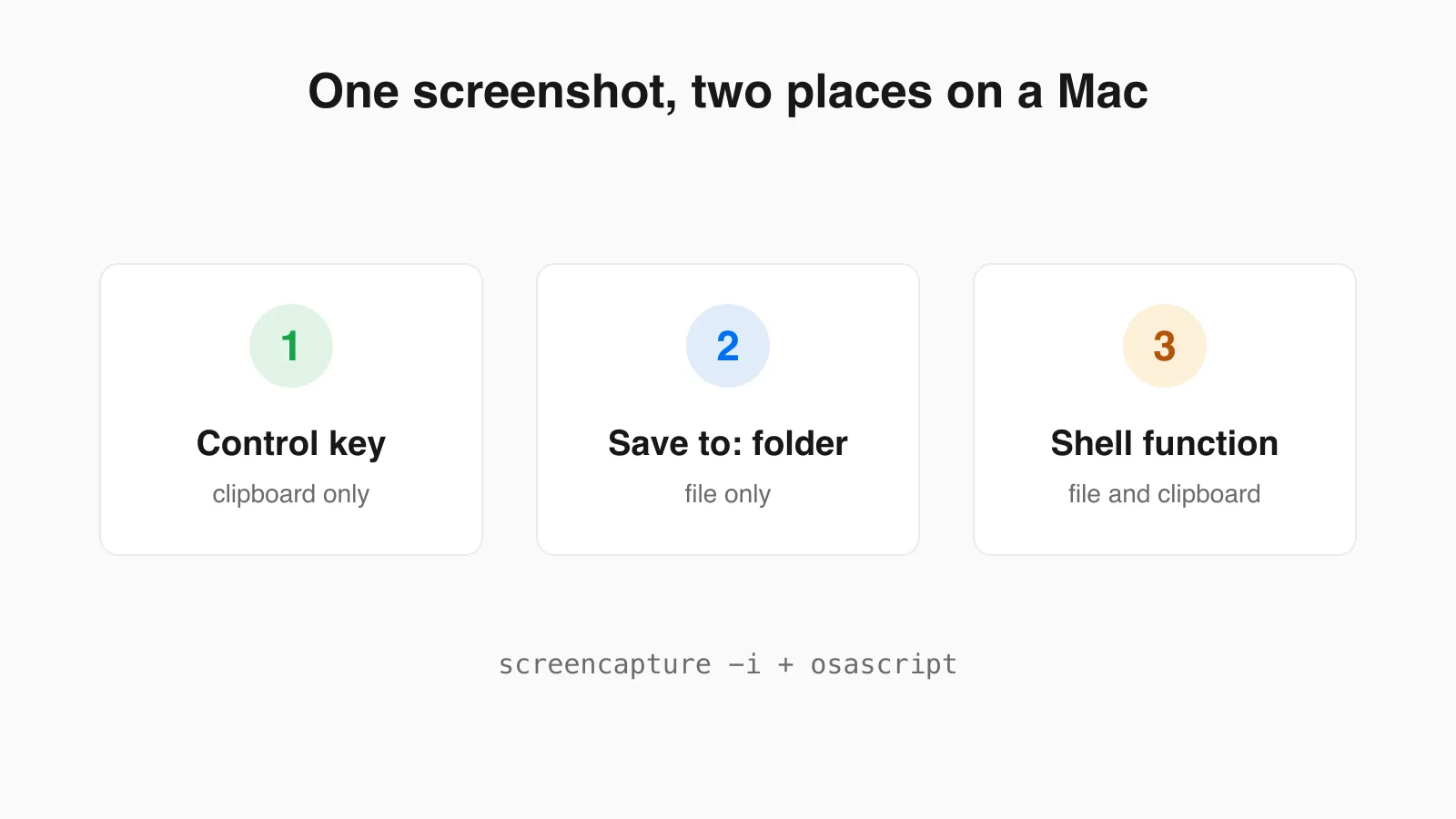 Mac Screenshot to Clipboard and File at the Same Time A Mac sends each screenshot to one place. Here is how to get both at once with a tested shell function, plus the one-off keys and how to copy an existing file to the clipboard.
 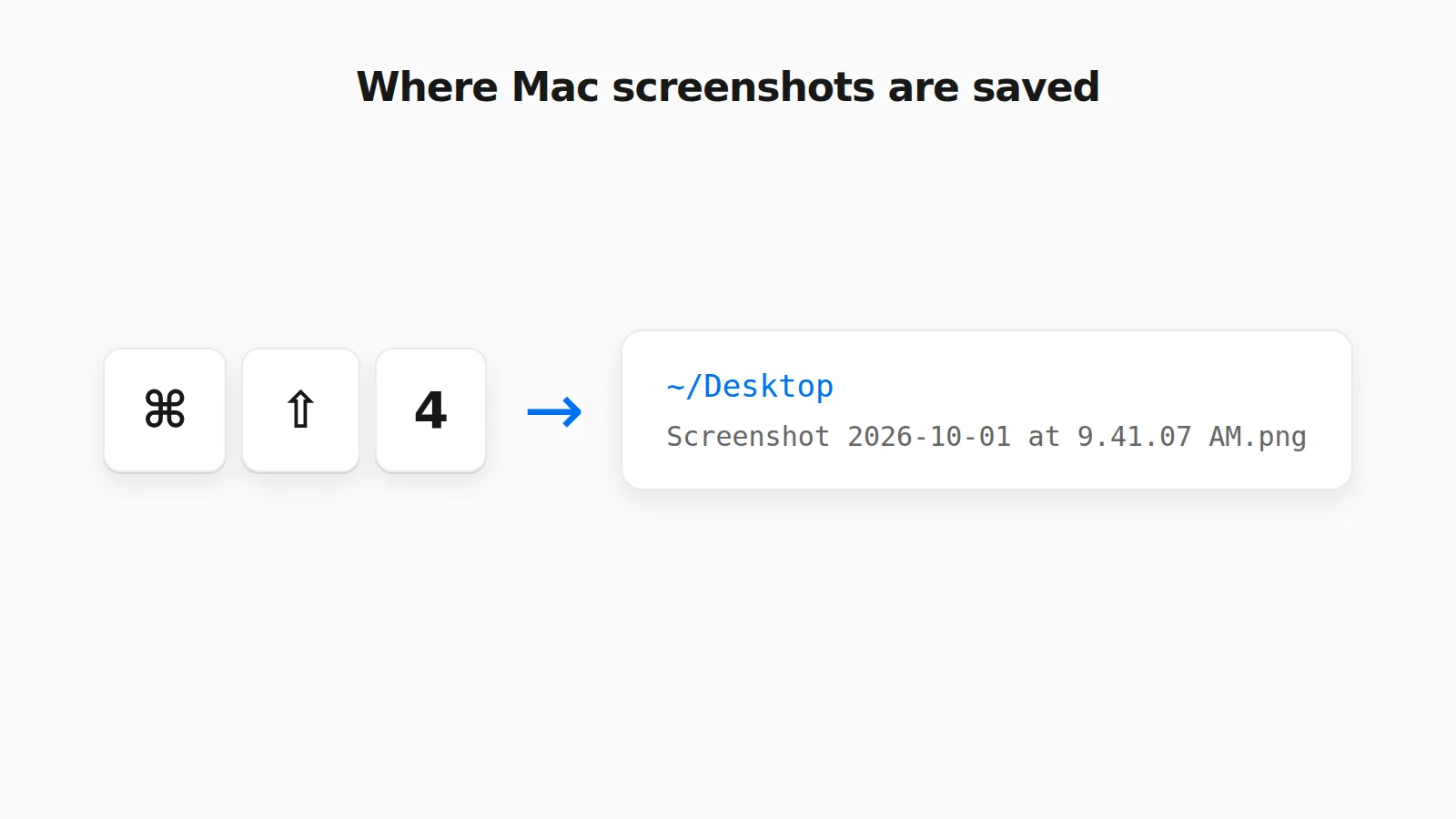 Where Do Screenshots Go on Mac? How to Find Them and Change the Folder Mac screenshots save to the Desktop by default, but not always. Find a missing one, change the folder, or rescue a clipboard-only capture.
 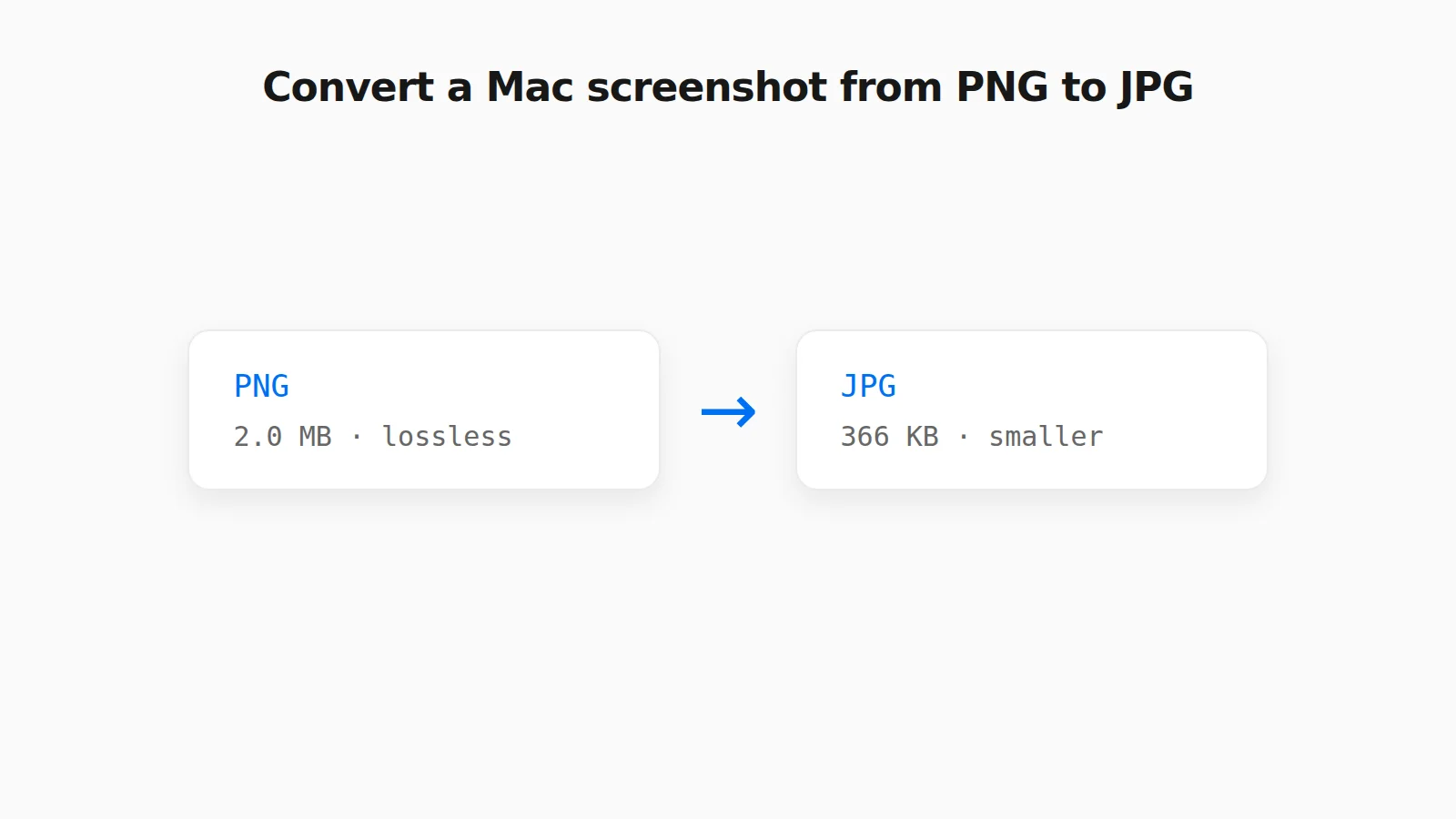 How to Convert a PNG Screenshot to JPG on Mac (4 Ways) Preview, the Finder Convert Image action, a Terminal default, and a browser tool, with real file sizes.