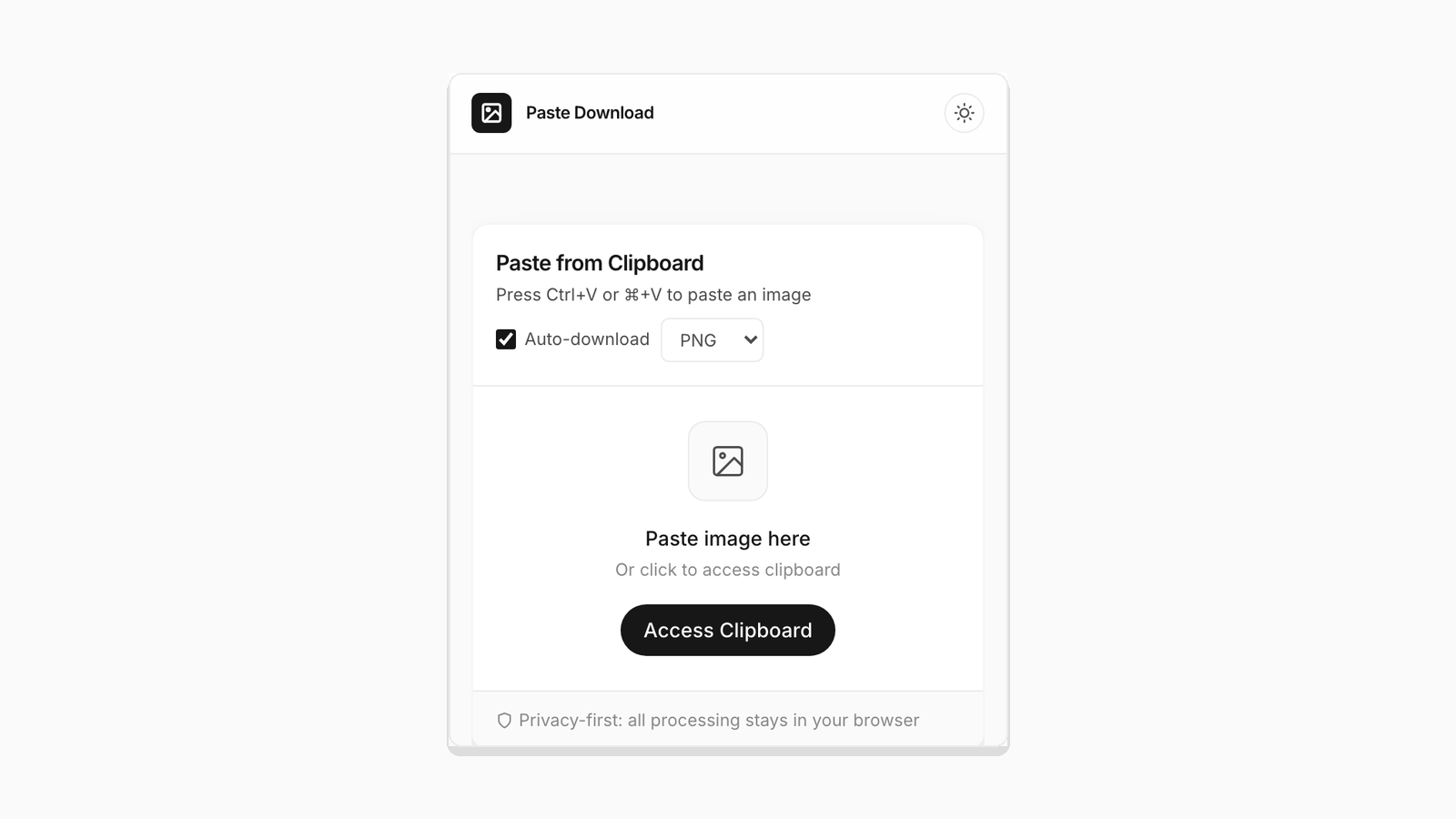
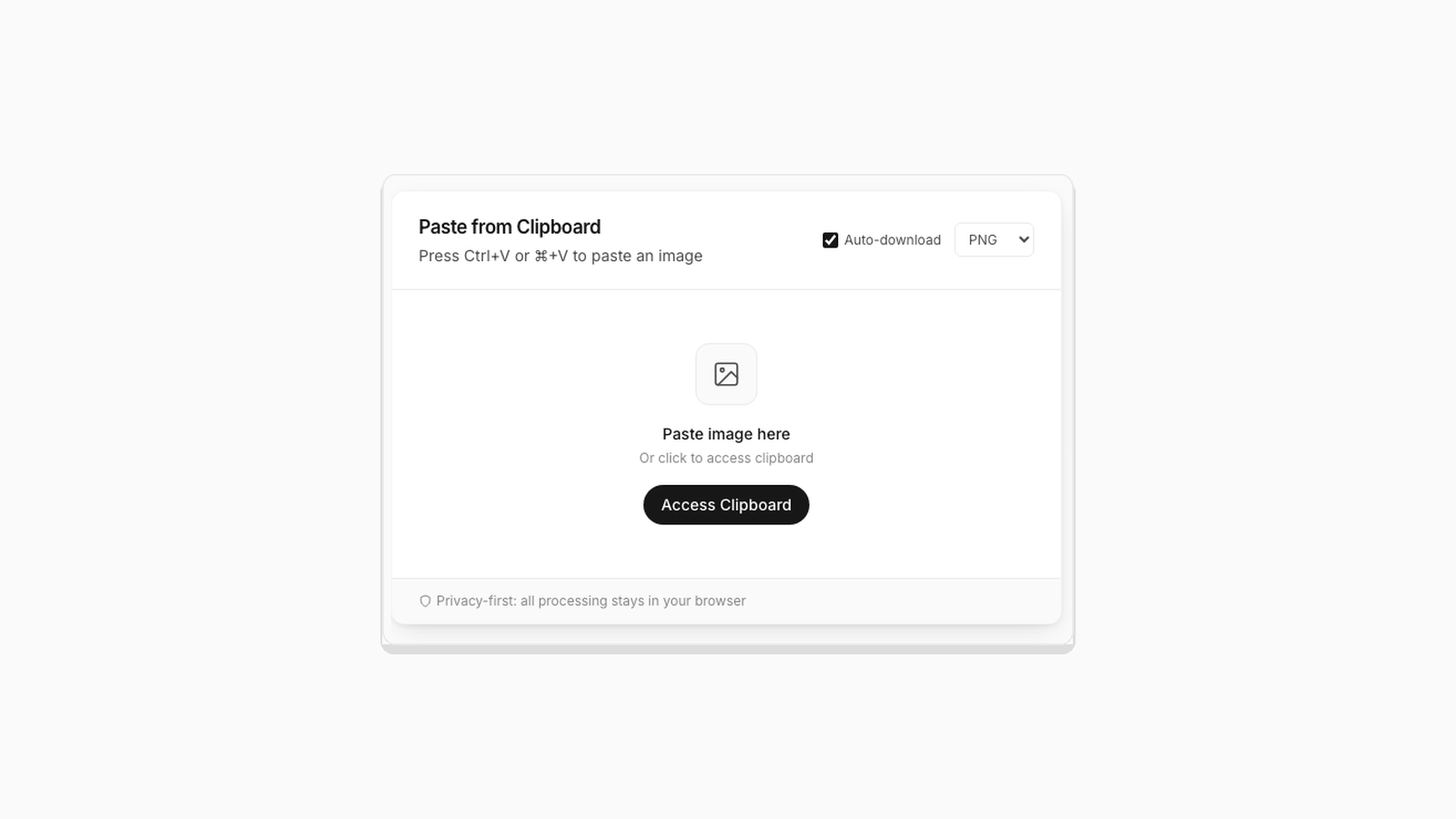
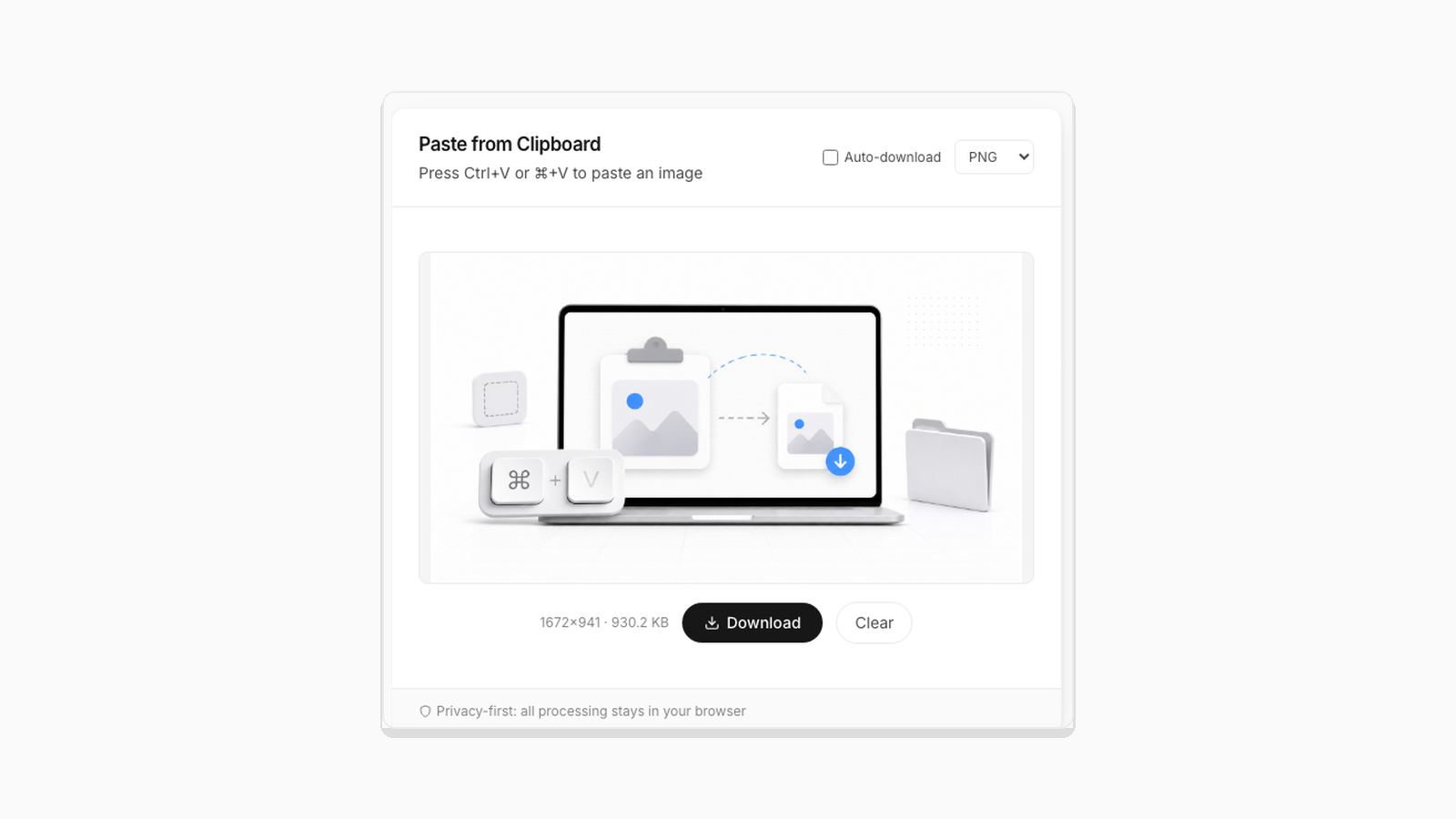
Paste from Clipboard
Press Ctrl+V or ⌘+V to paste an image
Paste image here
Or click to access clipboard
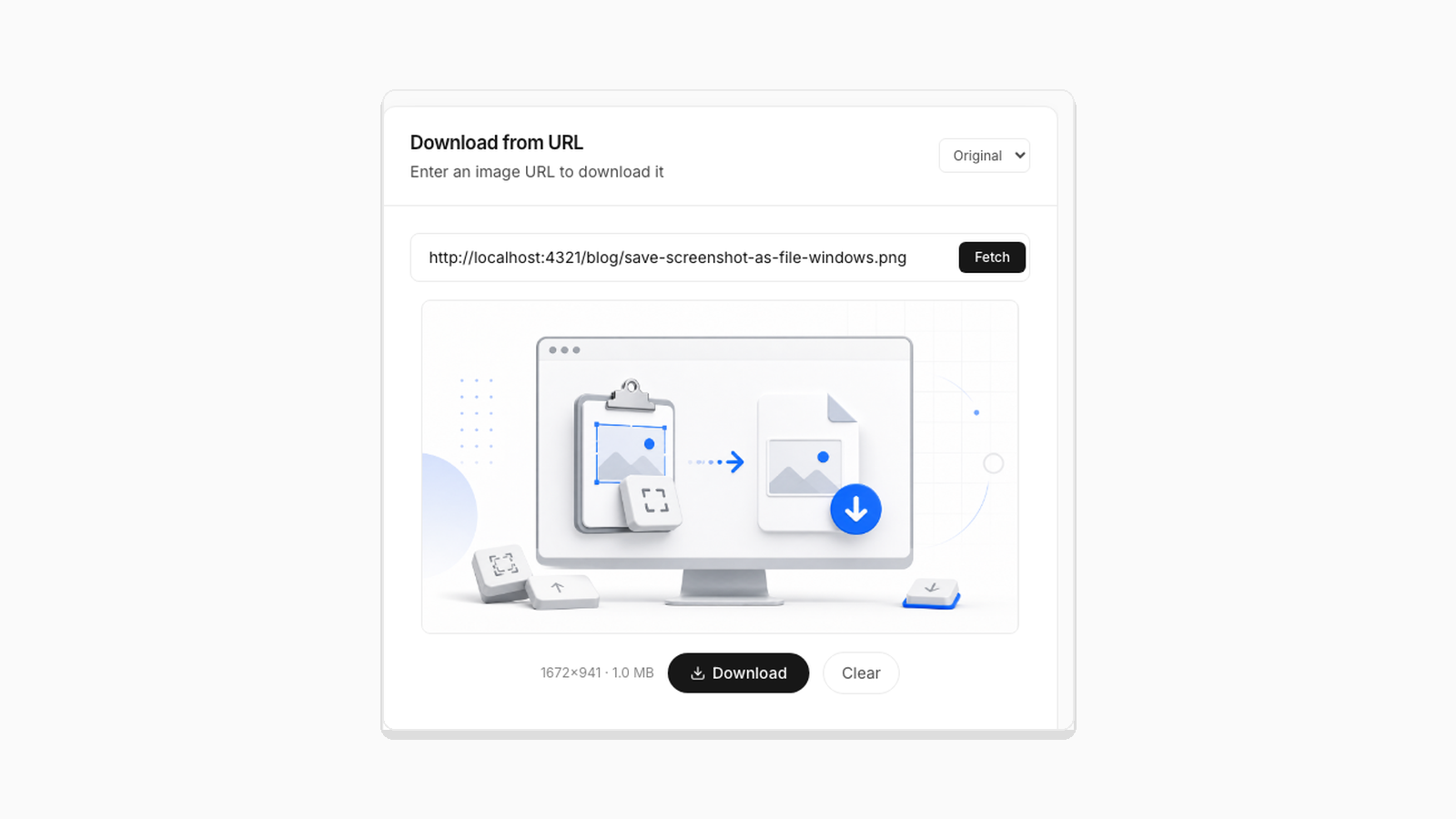
Download from URL
Enter an image URL to download it
Paste Download Images Instantly
Copy an image, press Ctrl+V, and download it as PNG, JPEG, or WebP. PasteDownloadApp works as a private paste downloader for screenshots, copied photos, clipboard images, drag-and-drop files, and direct image URLs.
Features
Everything you need for instant image downloads
Save clipboard images, download from URLs, and convert formats: all in your browser, nothing leaves your device.
Paste from Clipboard
Use Ctrl+V or Cmd+V to turn copied screenshots, photos, and graphics into downloadable files.
Download from URL
Enter an image link, preview the result, and save common formats including JPEG, PNG, WebP, GIF, SVG, BMP, and ICO.
Format Conversion
Convert pasted images between PNG, JPEG, and WebP before saving them to your device.
Privacy First
Clipboard images are processed locally in your browser, so private files stay on your device.
Auto Download
Enable auto-download to save each pasted image immediately. Ideal for quick batches.
Drag & Drop
Drag image files into the paste zone for an instant preview and download options.
How It Works
Three simple steps
No sign-up, no uploads, no fuss. Just copy, paste, and download.
Copy an Image
Copy an image from your computer, browser, or screenshot tool using Ctrl+C (or ⌘+C on Mac).
Paste or Enter URL
Press Ctrl+V (⌘+V) in the paste zone, or enter an image URL for instant fetching.
Choose Format & Download
Select PNG, JPEG, or WebP, then download the finished file. Auto-download can save a step.
Paste Download for Clipboard Images, Photos, and Screenshots
PasteDownloadApp is a focused workspace for getting an image off your clipboard, or a URL, and onto your disk as a file. Copy something (a screenshot, a design mockup, a chart from a meeting), open this page, press Ctrl+V or Cmd+V, and the browser reads the image data, shows you a preview with its dimensions and size, and lets you save it as PNG, JPEG, or WebP without sending anything to a server. If you want a slower walkthrough of that same flow, read saving clipboard images without extra software.
From Your Clipboard
Once you paste, the tool shows exact dimensions and file size before you commit to a format, and the PNG, JPG, and WebP comparison is worth reading if you are not sure which one to pick. If you prefer a hands-free flow, the Auto-download toggle converts and saves each pasted image the moment it lands, which is the fastest way to get through several screenshots in a row, covered in more depth in converting several screenshots fast. Mac users routing a copied image around Photos can follow the dedicated Mac clipboard guide; Windows users coming from Print Screen or Snipping Tool have their own Windows screenshot guide.
Not every browser handles a clipboard paste the same way. If Ctrl+V does nothing, or a button labeled Access Clipboard stays unresponsive, that is a real, documented difference between browsers rather than a bug on this page: see why Chrome, Firefox, and Safari behave differently and why Access Clipboard fails for the specific causes and fixes.
From a URL
When the image is not already on your clipboard, paste a direct link into the URL field and click Fetch. It supports JPEG, PNG, WebP, GIF, SVG, BMP, and ICO. Vector and multi-resolution icon files behave a little differently than an ordinary photo once they hit a canvas element, which is covered honestly (with real test results) in SVG and ICO conversion quirks. If a host blocks a direct request, the tool falls back to a CORS proxy, and if that also fails it shows a plain "Save Image As" fallback instead of a silent error.
On Mobile
The tool works the same way in a mobile browser, though the permission model behind clipboard access differs by OS. Android and iOS handle the "Access Clipboard" permission differently enough that it is worth reading if something does not work as expected: see clipboard images on Android vs iPhone.
Why It Stays Private
Clipboard images are read with the browser's Clipboard API and converted with the Canvas API, both running entirely on your device. Nothing is uploaded, there is no account, and there is no limit on how many times you can use it:
- Privacy-first: images are processed in your browser and never sent to our servers.
- No sign-ups: nothing to register before you start.
- Format conversion: PNG, JPEG, and WebP, chosen with a real quality tradeoff explained in how compression quality actually works.
- Unlimited use: no caps, no watermarks, no hidden fees.
- Cross-platform: Windows, Mac, Linux, Android, and iOS.
Get Started
No installation or account is required. Paste an image or fetch a URL, pick a format, and save the file.
Frequently Asked Questions
How do I use paste image to download on mobile?
Tap the Access Clipboard button to grant permission, then paste your image, or import it from your gallery or file manager if that button does not respond. Android and iOS handle this permission differently, which is covered in the guide to clipboard images on Android vs iPhone.
Why won't Ctrl+V paste my image?
The most common cause is that your clipboard does not actually contain image data, for example you copied a link instead of the picture itself. It can also be that the paste zone does not have focus yet, or that your specific browser applies stricter permission rules. See why clipboard paste behaves differently across browsers for the full breakdown.
Can I paste an image and convert it to another format?
Yes. Paste any image from your clipboard or fetch one from a URL, then download it in PNG, JPEG, or WebP format. Conversion happens locally in your browser when supported.
Is PasteDownloadApp free?
Yes, completely free with unlimited downloads. No sign-ups, no watermarks, no hidden fees, and no usage caps.
Why is my downloaded file a different size than expected?
If you chose PNG as the output, the browser's built-in encoder is not as aggressive as a dedicated PNG optimizer, so an already-optimized PNG can come out larger, not smaller. JPEG and WebP use a fixed 92% quality setting that produces a real, tested reduction. Both effects are shown with actual before-and-after numbers in why re-saving a PNG can get bigger.
Does this work if I copy an image from a PDF?
It depends on your PDF viewer. If it lets you right-click an embedded image and choose Copy Image, that places real image data on your clipboard and it pastes normally here. Some viewers only copy a text or vector selection, which will not paste as an image. Taking a screenshot of the PDF page always works as a fallback.
What happens if a direct image URL won't download?
Some image hosts block direct cross-origin requests. When that happens, the tool automatically tries a CORS proxy fallback, and if that also fails it shows the image so you can use your browser's built-in Save Image As option instead of a silent failure.
How does the browser-based processing work?
The tool uses the browser's Clipboard API to read image data and the Canvas API for format conversion. Clipboard images are processed on your device. URL downloads are fetched through the browser and converted when possible.
Latest Guides & Articles
Why Clipboard Image Paste Behaves Differently in Chrome, Firefox, and Safari
The Clipboard API is not implemented the same way everywhere. Here is what actually differs between browsers.
Saving a Clipboard Image on Android vs iPhone: What Actually Works
Mobile clipboard access does not match desktop. Here is the real difference between Android and iOS browsers.
Why "Access Clipboard" Fails, and How to Fix It
Clipboard read permission errors explained: browser support, HTTPS requirements, and permission prompts.
How to Convert Several Screenshots Fast Without Batch Software
PasteDownloadApp converts one image at a time. Here is the fastest real workflow for getting through a stack of them.