Why Clipboard Image Paste Behaves Differently in Chrome, Firefox, and Safari

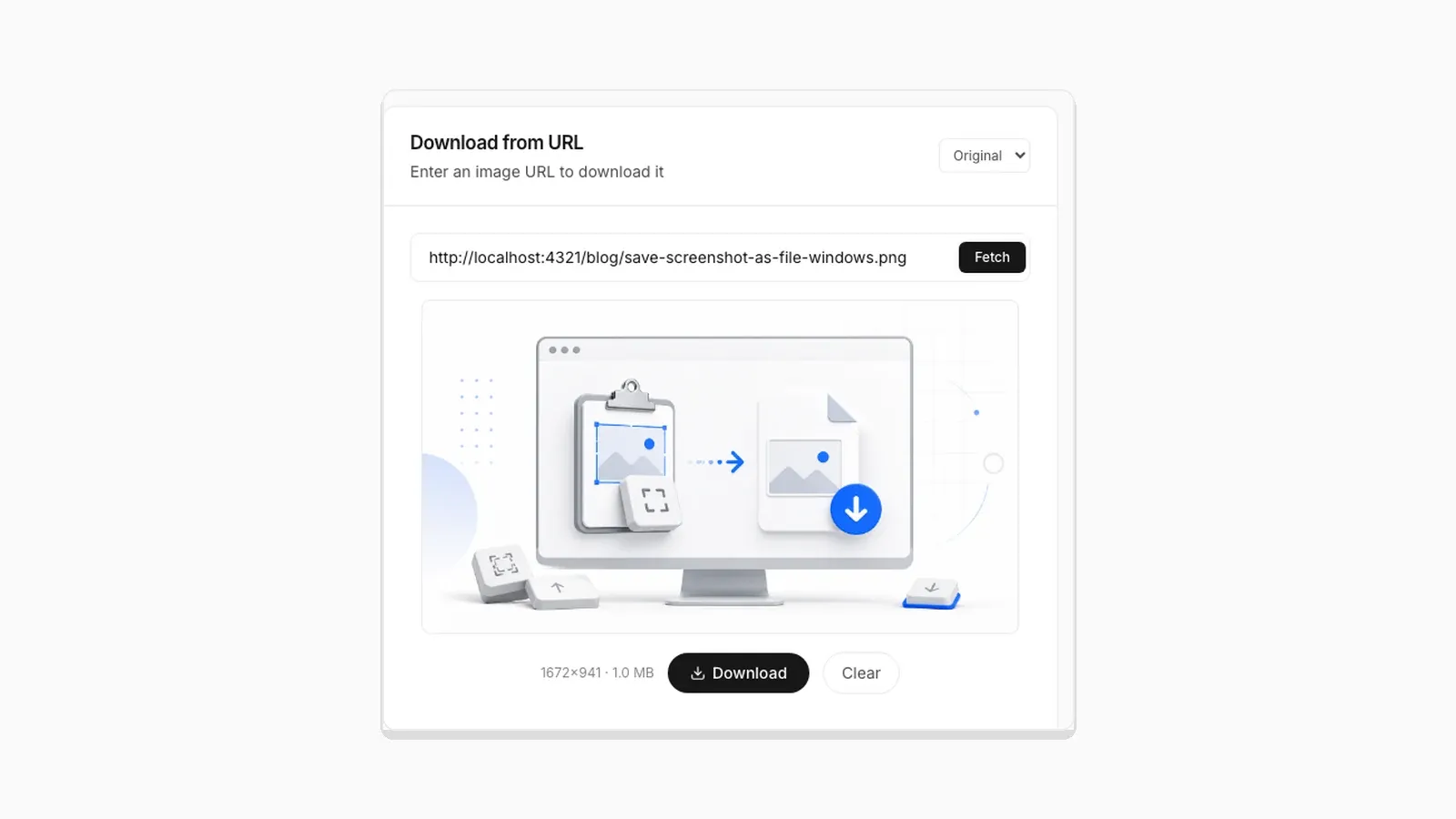
Paste works fine in Chrome. Then a coworker on Safari says the button does nothing. Someone on Firefox says it asked for a permission they had never seen before. This is not a bug in any one tool. Clipboard image access runs through the Async Clipboard API. Chrome, Firefox, and Safari have not converged on identical behavior for it. Every image-pasting site, including this one, has to work around the gaps. Here is what actually differs. It is based on each browser's documented permission model. It also includes a real permission check run against the live tool.
The Two Ways a Page Can Read an Image From Your Clipboard
There are two separate code paths, and browsers support them unevenly:
- The paste event. When you press Ctrl+V or Cmd+V while a page element has focus, the browser fires a
pasteevent with aclipboardDataobject. A script can read image items from that event with no special permission. The event only fires when you press the keys yourself. - navigator.clipboard.read(). This lets a script read the clipboard on demand, for example when you click an "Access Clipboard" button instead of pressing Ctrl+V. It requires the Async Clipboard API, a secure context (HTTPS), and, in most browsers, an explicit permission grant.
PasteDownloadApp uses both: the paste event for the Ctrl+V flow, and navigator.clipboard.read() for the Access Clipboard button. That combination is also why the button sometimes behaves differently than the keyboard shortcut on the same page. If the button specifically is the one failing for you, see why "Access Clipboard" fails and how to fix it.
Chrome and Edge (Chromium)
Chromium browsers have the most complete implementation. The paste event has worked for image data for years. navigator.clipboard.read() with ClipboardItem support for images has been stable too, since Chrome shipped the Async Clipboard API's image support. I tested this against the live tool on Chromium 141. A real paste event with a 1.4 MB PNG finished the paste, conversion, and download with no permission prompt. Then, on the same page, I checked the permission state with navigator.permissions.query({ name: 'clipboard-read' }). That is the same check read() depends on. It returned "prompt". That means a click-triggered call to clipboard.read() would have asked the user to answer a permission dialog. So the two code paths really do carry different permission rules.
Firefox
Firefox supports the paste event the same way Chromium does. Ctrl+V works reliably as a result. Where it differs is navigator.clipboard.read(). Firefox has historically been more conservative about exposing arbitrary clipboard reads to scripts. Older releases even required enabling the feature manually through about:config before read() would work for image data at all. Current releases work without a flag. Firefox is still stricter, though. The call must happen as a direct response to a click. A rejected or unfocused window will fail silently rather than showing a prompt. If a click-to-paste button does not respond in Firefox, pressing Ctrl+V directly into the drop zone is the more reliable path.
Safari
Safari supports the Async Clipboard API but applies the strictest gesture requirements of the three. A call to navigator.clipboard.read() has to happen synchronously inside a user-initiated event handler. If there is any delay, such as an await before the call or a state update in between, Safari will reject the request. It shows no permission dialog in that case. This is a deliberate anti-abuse measure, not a bug. It does mean, though, that code working in Chrome without changes can silently fail in Safari. The paste event path is unaffected by this restriction, since it is inherently tied to a real keystroke. That is another reason Ctrl+V is the more dependable method across all three browsers.
What This Means in Practice
| Browser | Ctrl+V / Cmd+V paste event | Click-to-paste (clipboard.read) |
|---|---|---|
| Chrome / Edge | Reliable | Reliable, one-time permission prompt |
| Firefox | Reliable | Works on current releases, older versions need a flag enabled |
| Safari | Reliable | Fails if not called synchronously inside the click handler |
The takeaway is the same in every browser: Ctrl+V or Cmd+V is the most consistent way to get an image from your clipboard into a browser tool. Buttons like "Access Clipboard" are a convenience for when you cannot use the keyboard shortcut, not the primary path.
Frequently Asked Questions
Does PasteDownloadApp work in Safari?
Yes. Paste with Cmd+V and it works the same as Chrome. The Access Clipboard button is less reliable in Safari because its gesture rules are stricter. The keyboard shortcut is the better option there.
Why does Firefox ask a different permission question than Chrome?
The two browsers use different underlying permission models for the Async Clipboard API. Firefox has historically treated arbitrary clipboard reads as more sensitive than Chrome does. That shows up as stricter prompts, or a feature flag on older versions.
Is drag and drop affected by these differences?
No. Drag and drop uses the DataTransfer interface, which is a separate, older API with consistent support across Chrome, Firefox, and Safari. If clipboard paste is giving you trouble, dragging a file into the drop zone is a reliable fallback.
Related Guides
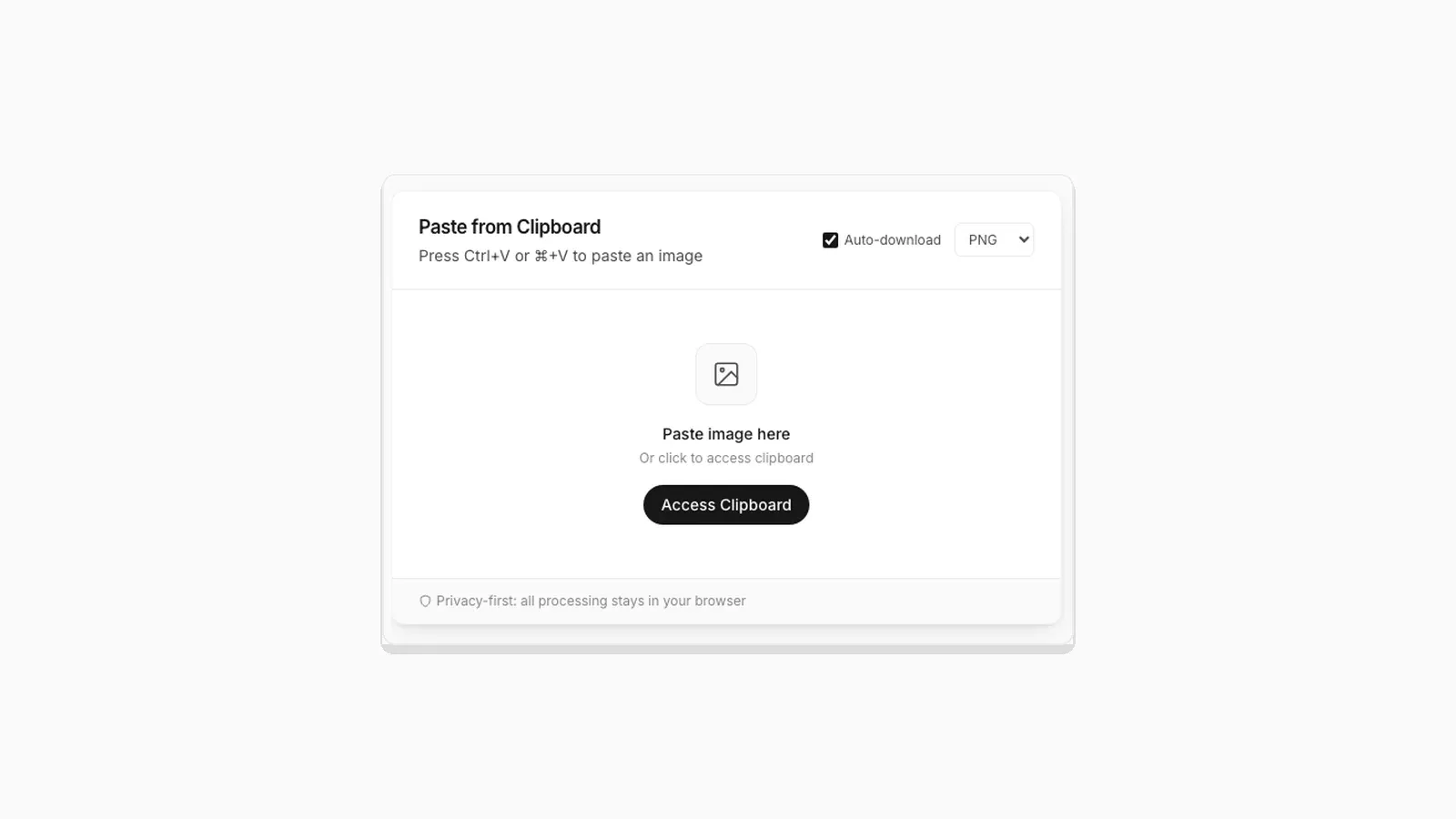 Why "Access Clipboard" Fails, and How to Fix It Clipboard read permission errors explained: browser support, HTTPS requirements, and permission prompts.
 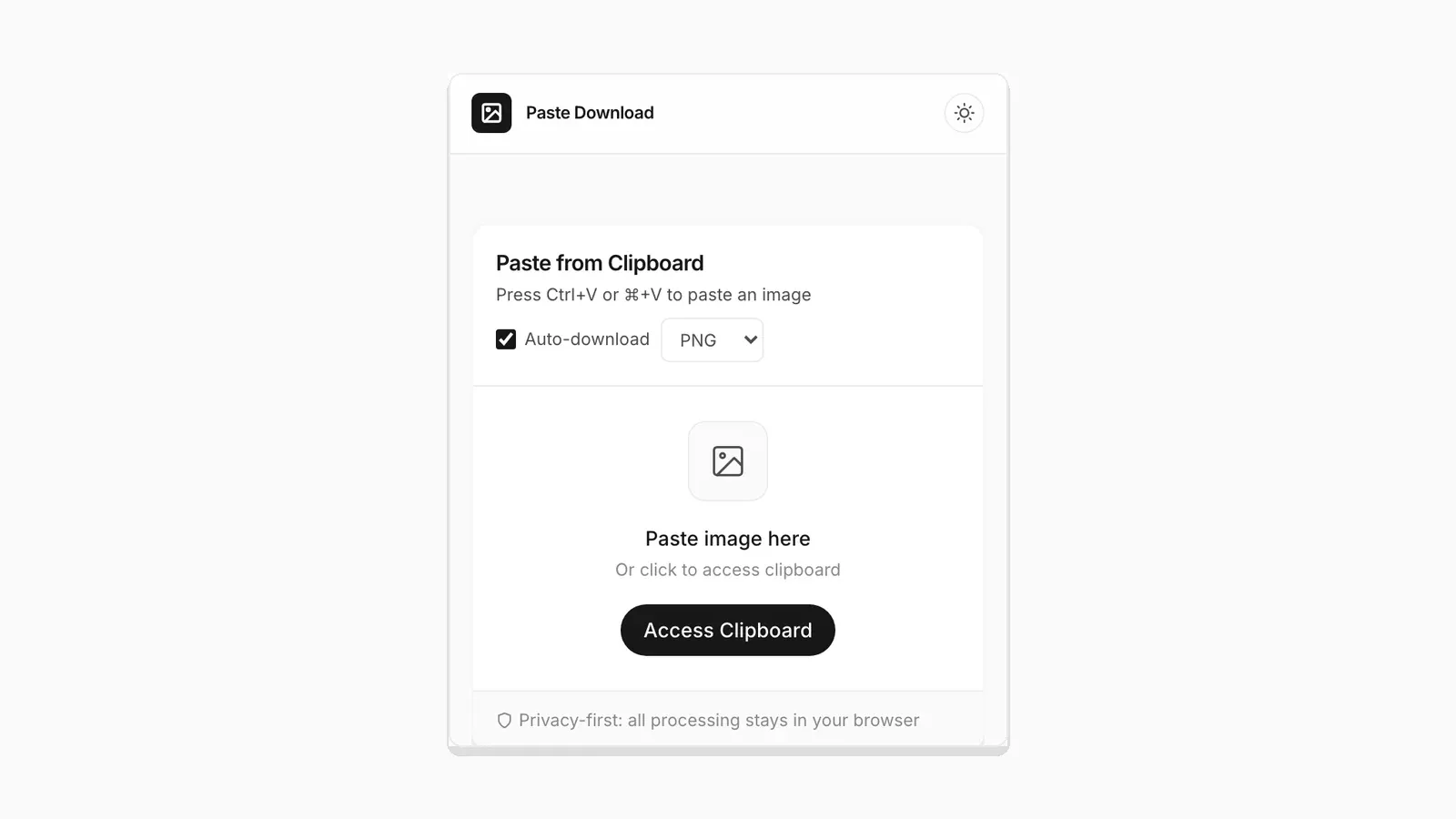 Saving a Clipboard Image on Android vs iPhone: What Actually Works Mobile clipboard access does not match desktop. Here is the real difference between Android and iOS browsers.
  5 Faster Ways to Save Clipboard Images Without Software Compare browser-based and built-in methods for saving copied images on desktop and mobile.