5 Faster Ways to Save Clipboard Images (No Software Install Needed)


A screenshot, a chart from a meeting, or a copied image from a browser tab is sitting in your clipboard. Getting it out as a real PNG or JPG file usually means opening Paint, Preview, or an app you did not plan to launch. There are five real ways to do it without installing anything, and they are not equally good. Some cost you image quality without telling you. One commonly recommended method does not exist as a built-in Windows feature. Only one of the five gives you real format control. This compares all five honestly, including where each one falls short.
| Method | Format control | Quality | Leaves your device |
|---|---|---|---|
| Browser paste tool | PNG, JPEG, or WebP | Full, original pixels | No |
| Paste into email / Google Docs | Whatever the app exports | Often resized or capped | Yes, to that app's server |
| Online image editor | Varies by site | Full, usually | Depends on the site |
| Native OS app (Preview, GIMP) | Full, you choose on export | Full, original pixels | No |
| Windows File Explorer | Not natively possible | N/A | N/A |
Method 1: A Browser-Based Paste Tool
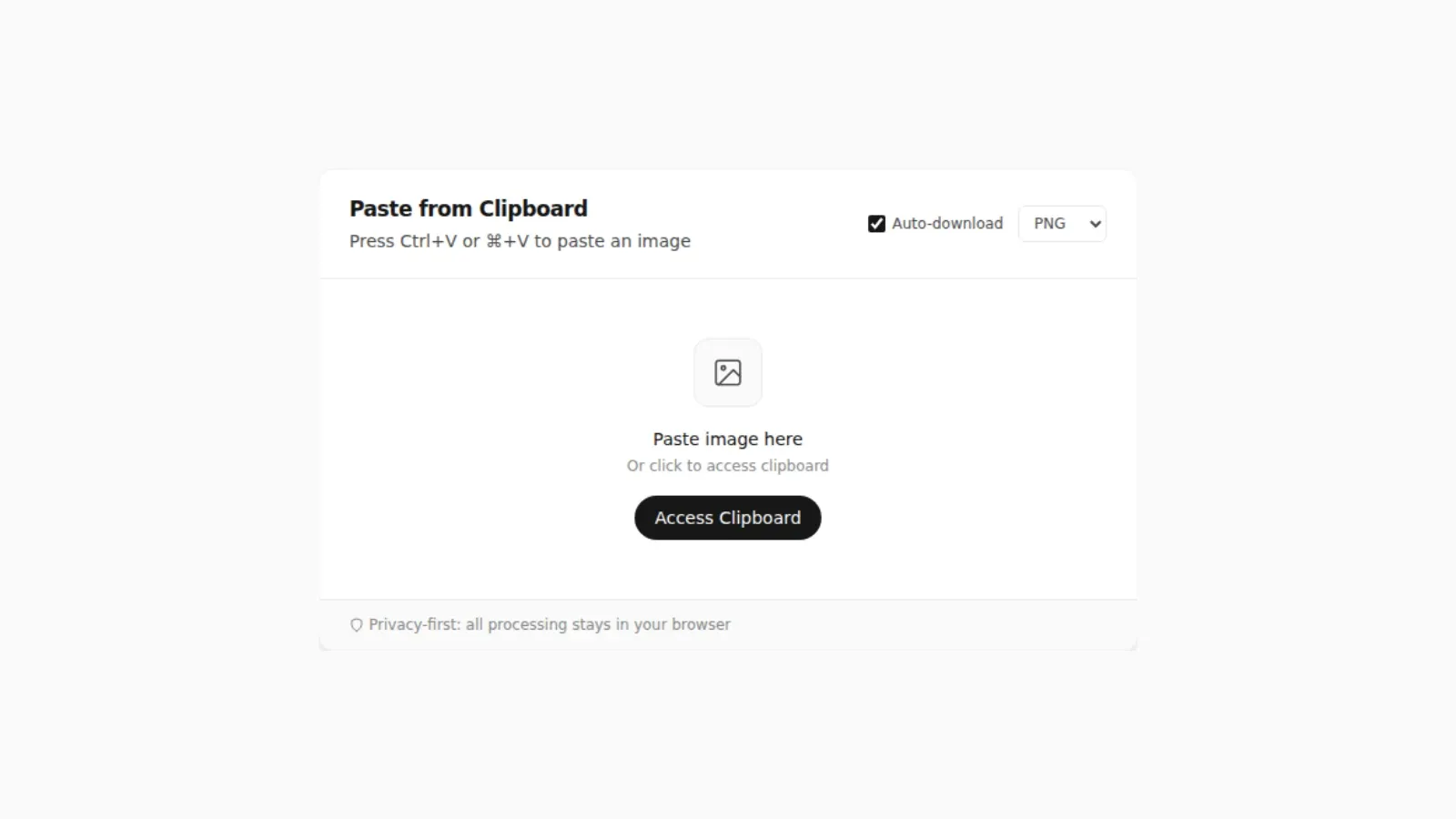
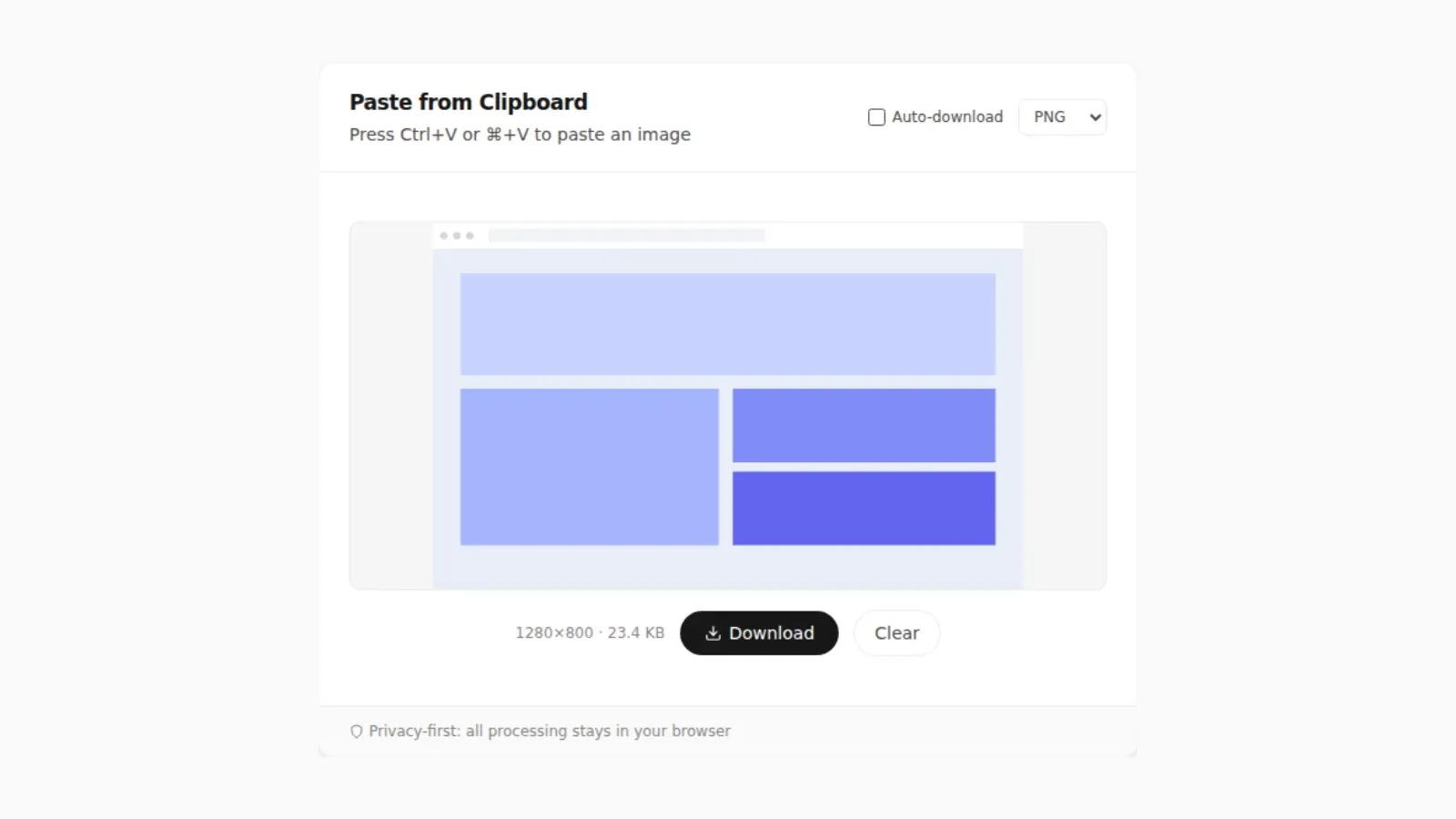
Open pastedownloadapp.com, press Ctrl+V (or Cmd+V on Mac), and the clipboard image appears ready to download in PNG, JPEG, or WebP. No sign-up, no size limit, and nothing is uploaded: the conversion happens with the browser's own Canvas API, entirely on your device.
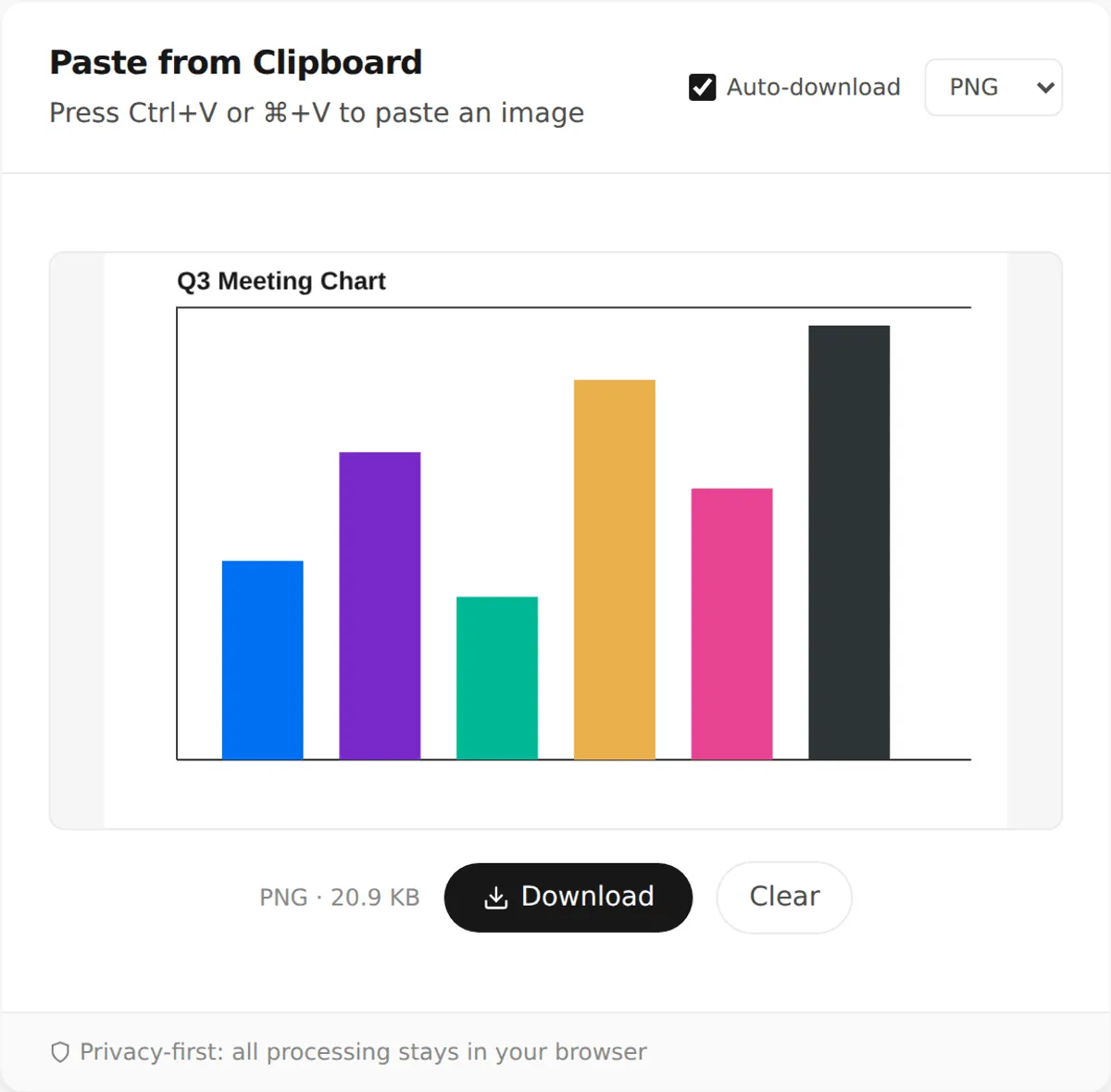
That screenshot is a real run: a 1000×640 test chart, pasted and converted to a 20.9 KB PNG, reported directly by the tool. This is the only method of the five that gives you a choice of output format at full resolution with nothing sent anywhere.
Method 2: Paste Into an Email or Document
Open a compose window or a Google Doc and paste. Right-click the result and choose Save Image or Download. It works if you are already in one of those apps, but it has a cost most guides skip. Gmail resizes inline pasted images when the composer is set to "small" or "best fit". What you save back out is not the original resolution. Only a true file attachment keeps it. Google Docs has no built-in compressor and normally keeps images at their original size. It does cap embedded images at roughly 2000×2000 pixels. Paste something larger and Docs shrinks it silently. If you specifically need a real attachment rather than inline content, see how to turn a pasted screenshot into an email attachment.
Method 3: An Online Image Editor
Some image editing sites accept a clipboard paste into their canvas and expose an export or download button. It is the same underlying mechanic as Method 1, just wrapped inside a larger editing suite, and useful specifically when you also want to crop or resize before saving. The tradeoff is that these sites vary widely in whether they process client-side or upload your image to a server first; check before pasting anything sensitive.
Method 4: Native OS Tools
Each desktop OS has a built-in way to turn a clipboard image into a file, and they are not interchangeable:
- Windows: open Paint, paste with Ctrl+V, then File > Save As and pick a format.
- Mac: open Preview, use File > New from Clipboard (or Cmd+N from Spotlight), then File > Export to choose the format explicitly. For the full breakdown, including why a plain Save can produce an oversized file, see copying and saving a picture on Mac.
- Linux: open GIMP, use Edit > Paste as > New Image (Shift+Ctrl+V), then File > Export As and choose PNG or another format.
All three work, but they are OS-specific, need an app you may not have open already, and involve more menu navigation than a browser tab you can leave pinned. If your clipboard image originated in a specific browser, it is also worth knowing that Chrome, Firefox, and Safari do not implement clipboard image access identically.
Method 5: Windows File Explorer (and Why It Doesn't Actually Work)
This method gets recommended often enough that it is worth addressing directly: Windows File Explorer cannot natively turn a clipboard image into a file. Ctrl+V in an Explorer window only pastes copied files, not raw image data from a screenshot or a copied picture; there is no built-in "paste as file" behavior. What actually enables this is a small set of third-party tools that add a "Paste image as file" option to the right-click menu, such as Microsoft's own PowerToys utilities or a handful of open-source alternatives. If you want the convenience of pasting straight into a folder, one of those is what you need to install, not a hidden Explorer feature.
How to Save a Clipboard Image in Seconds
The numbered workflow below uses the dedicated browser method since it's the fastest and most universal:
- Copy an image to your clipboard (screenshot, right-click "Copy Image," or Ctrl+C on an existing image).
- Open your browser and navigate to pastedownloadapp.com.
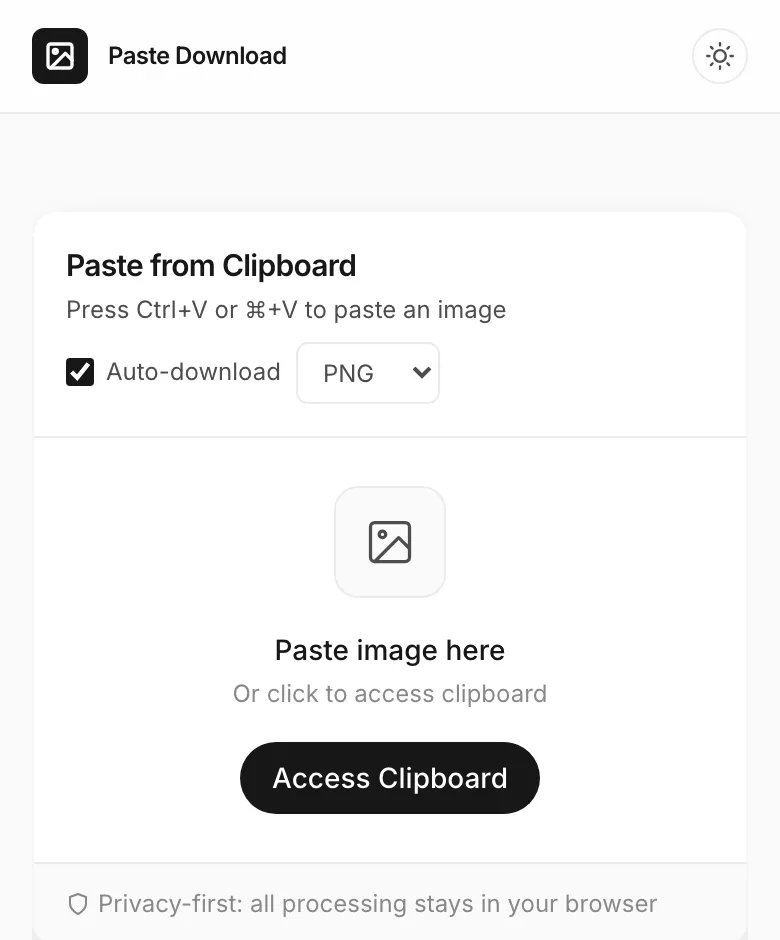
- Press Ctrl+V (Windows) or Cmd+V (Mac) in the paste zone on the page.
- Wait one second for the preview to render. The image is processed entirely on your device.
- Click the download button to save the file as PNG or JPEG, whichever you prefer.
That's it. The whole sequence takes about 10 seconds, zero installations.
Platform-Specific Guides
The browser workflow is the same everywhere because the image starts on your clipboard, not in a platform-specific app. For details that differ by device, see saving a screenshot as a file on Windows, copying and saving a picture on Mac, and saving a clipboard image on Android vs iPhone. On Linux and Chromebook, copy the image from your browser or screenshot tool and paste it the same way.
Should You Save Clipboard Images as PNG or JPG?
Use PNG when you are saving screenshots, UI captures, diagrams, text, or anything with sharp edges. Use JPG when the clipboard image is a photo and you want a smaller file. If you are choosing between formats, the full PNG vs JPG vs WebP comparison explains when each one makes sense. If you are not sure, start with PNG because it preserves the copied image without quality loss.
FAQ
Can Windows File Explorer really not paste an image as a file?
Correct, not without extra software. Explorer's Ctrl+V only pastes copied files, never raw clipboard image data. Microsoft's own PowerToys utilities, or a similar third-party tool, add the "paste as file" right-click option some guides describe as if it were built in.
Does pasting an image into Gmail or Google Docs reduce its quality?
Gmail can, if the image is inline in the message body rather than a true attachment: the composer's display setting resizes inline images. Attachments are untouched. Google Docs does not compress on its own but caps embedded images around 2000×2000 pixels, silently downscaling anything larger the moment you paste it in.
Can I save clipboard images on my phone?
Yes. On Android, long-press an image and tap "Copy image," then open pastedownloadapp.com in Chrome and paste. On iPhone, copy an image from Safari or Photos, then paste into the same tool.
Is it safe to paste images into a browser tool?
Yes, as long as the tool processes on the client side rather than uploading to a server. PasteDownloadApp's conversion runs through the browser's Canvas API locally; the image never leaves your device.
What image formats can I paste and save?
The clipboard typically stores PNG image data, though some apps copy JPEG. The tool reads whatever format your clipboard holds and lets you download the result as PNG, JPEG, or WebP regardless of the source format.
Why not just paste into Paint or Preview?
You can, and it works, but it adds friction: open the app, paste, choose Save As or Export, pick a format and folder, name the file. A browser tab you already have open skips all of that.
Related Guides
 Saving a Clipboard Image on Android vs iPhone: What Actually Works Mobile clipboard access does not match desktop. Here is the real difference between Android and iOS browsers.
  Why "Access Clipboard" Fails, and How to Fix It Clipboard read permission errors explained: browser support, HTTPS requirements, and permission prompts.
  Why Clipboard Image Paste Behaves Differently in Chrome, Firefox, and Safari The Clipboard API is not implemented the same way everywhere. Here is what actually differs between browsers.
  Where Do Screenshots Go on Windows, Android, and iPhone? Screenshots and copied images do not behave like normal files until you save them. Here is where they go on Windows, Android, and iPhone.
  How to Turn a Pasted Screenshot Into an Email Attachment Gmail and Outlook can paste an image straight into the message body, but that is not the same as an attachment. Here is how to turn a clipboard image into a real file first.