Why Re-Saving a PNG Can Make the File Bigger, Not Smaller

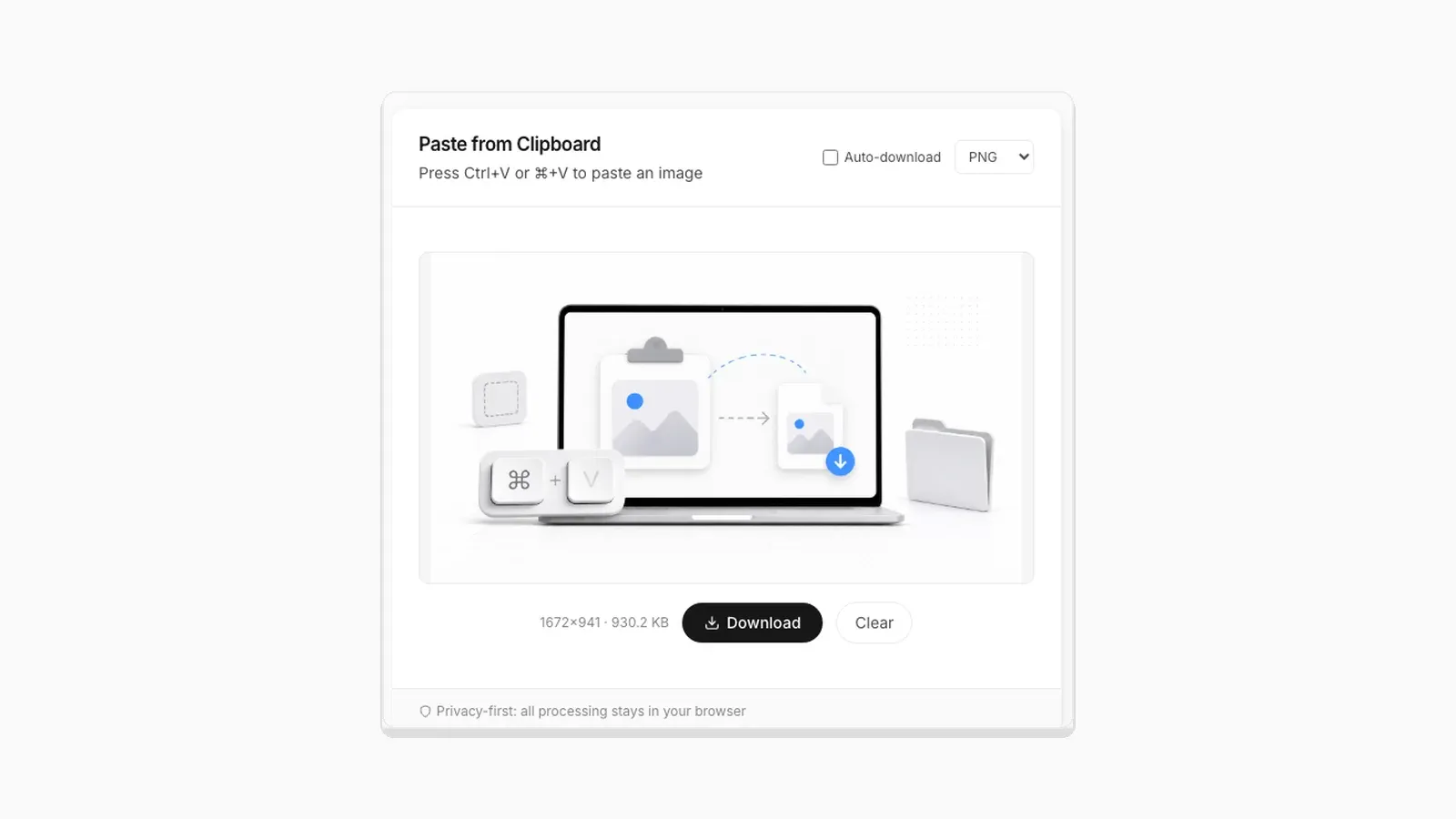
PNG is lossless, so re-saving a PNG as a PNG should produce an identical or near-identical file, right? While writing the format comparison for this site, I pasted a PNG in and chose PNG as the output format. The file came out larger than the original: not the same size, not smaller. That was surprising enough that I tested it on a second, completely different file, to make sure it was not a fluke. It was not. Here is what is actually going on.
The Test
I converted two real PNGs through PasteDownloadApp's pipeline, selecting PNG as the output format for both. That routes the image through an HTML canvas and calls canvas.toBlob() to produce the file:
| File | Original size | After PNG re-encode | Change |
|---|---|---|---|
| Gradient illustration, 1672×941 | 1.15 MB | 1.93 MB | +68% |
| UI screenshot, 624×575 | 140.2 KB | 231.5 KB | +65% |
A third file, a 512×512 app icon, barely moved: 22.3 KB to 22.2 KB. That turned out to be the clue that explained the other two.
Why This Happens: PNG Size Depends on the Encoder, Not Just the Pixels
PNG's lossless compression (DEFLATE, the same family of algorithm used in ZIP files) has a lot of tunable parameters: compression level, filter strategy per scanline, and whether the encoder spends extra time trying multiple filter approaches and keeping the smallest result. A dedicated PNG optimizer, or the export pipeline of a design tool, typically spends real computation trying several strategies and picks the best one. A browser's built-in canvas.toBlob('image/png') is optimized for speed instead, not for squeezing out every possible byte. It has to run instantly on a UI thread, rather than as a batch job.
The two source files that grew significantly, the illustration and the screenshot, had both been pre-optimized before they were ever uploaded to this site's own asset pipeline. That was almost certainly done by a build tool that ran a proper PNG compressor. Once decoded into raw pixels and re-encoded by the browser's faster, less aggressive encoder, that prior optimization was gone. The new file reflects only what the browser's default encoder settings produce. The 512×512 icon barely changed, because it was already small and simple enough that there was little room for a better encoder to improve on.
The Other Culprit: Palette PNGs Become Full-Color PNGs
Encoder effort is not the only reason a PNG grows. PNG supports several color types. A palette PNG, also called indexed color or PNG-8, stores a table of up to 256 colors and then one small index per pixel. Icons, simple logos, and images that went through a tool like pngquant are often saved this way, and it is very compact.
A canvas does not keep any of that. When the browser decodes the image onto a canvas, every pixel becomes a full red, green, blue, and alpha value. When canvas.toBlob() writes a PNG, it writes that full-color data, not a palette. An image that fit in a 256-color table is now stored as millions of possible colors, even though it still only uses 256 of them. That alone can double or triple the file size of a simple graphic. The same thing happens to grayscale PNGs, which are stored as a single channel in the original but come out as full color.
Metadata works in the opposite direction. A canvas re-encode drops text chunks, embedded color profiles, and other metadata stored in the original file. That makes the output slightly smaller, but on most images the savings are only a few kilobytes, nowhere near enough to cancel out the effects above.
What This Means for Format Choice
Say your PNG is already optimized, whether by a build tool, an export setting in Figma or Photoshop, or a dedicated compressor. Running it back through any browser-based canvas tool for a same-format "conversion" will very likely make it bigger, not smaller. This is not specific to PasteDownloadApp. It is how canvas.toBlob() works in every browser, since none of them run a full PNG optimization pass by default. The practical rule: only choose PNG as your output format when you actually need lossless output for a fresh capture, a new screenshot, for instance. Do not use it as a way to "clean up" or shrink an existing PNG. For an existing PNG that is already too large, there is a far more effective path. WebP lossy at PasteDownloadApp's default quality produced files 96% and 88% smaller than the originals, in the real compression numbers I tested separately.
How to Actually Make a PNG Smaller
If your goal is a smaller file that is still a PNG, use a tool built for it:
- Lossless optimizers such as OptiPNG and oxipng try many filter and compression combinations and keep the smallest result. The pixels stay identical, and savings of 10 to 40 percent on unoptimized files are common.
- Lossy palette reduction with pngquant, or web front ends built on it such as TinyPNG, reduces the image to a 256-color palette. For screenshots and flat graphics the difference is usually hard to see, and the file often shrinks by more than half.
- Squoosh, a free browser-based app from the Chrome team, runs these same kinds of encoders in the browser, so you can compare the result side by side before downloading.
If the file does not strictly need to be a PNG, converting to WebP is simpler and usually wins by a wide margin, as the numbers above show.
Frequently Asked Questions
Does this mean PNG compression is broken in the browser?
No, it is working correctly. It is just optimized for encoding speed rather than minimum file size. The output is still a fully valid, lossless PNG. It is simply less aggressively compressed than a file that went through a dedicated optimizer.
Will converting the same PNG twice make it even bigger the second time?
No. Once an image has been decoded and re-encoded by the same encoder, with the same settings, a second round trip through canvas.toBlob will not shrink it further. It produces an equivalent-sized file, since there is no more prior third-party optimization left to lose.
Is there a way to get a smaller PNG out of a browser-based tool?
Not through canvas.toBlob alone. Getting PNG file sizes down to what a dedicated optimizer produces requires a purpose-built compression library. That is a meaningfully heavier piece of code than a simple paste-and-convert tool. If PNG size matters more than format, a dedicated PNG optimizer is the right tool for that specific job.
Related Guides
 Image Compression Quality Settings Explained, With Real File Sizes What a JPEG or WebP quality number actually changes, shown with real before-and-after file sizes.
  PNG vs JPG vs WebP: Real File Sizes Compared PNG vs JPG vs WebP for quality, transparency, and file size, backed by real measured results, not general claims.
 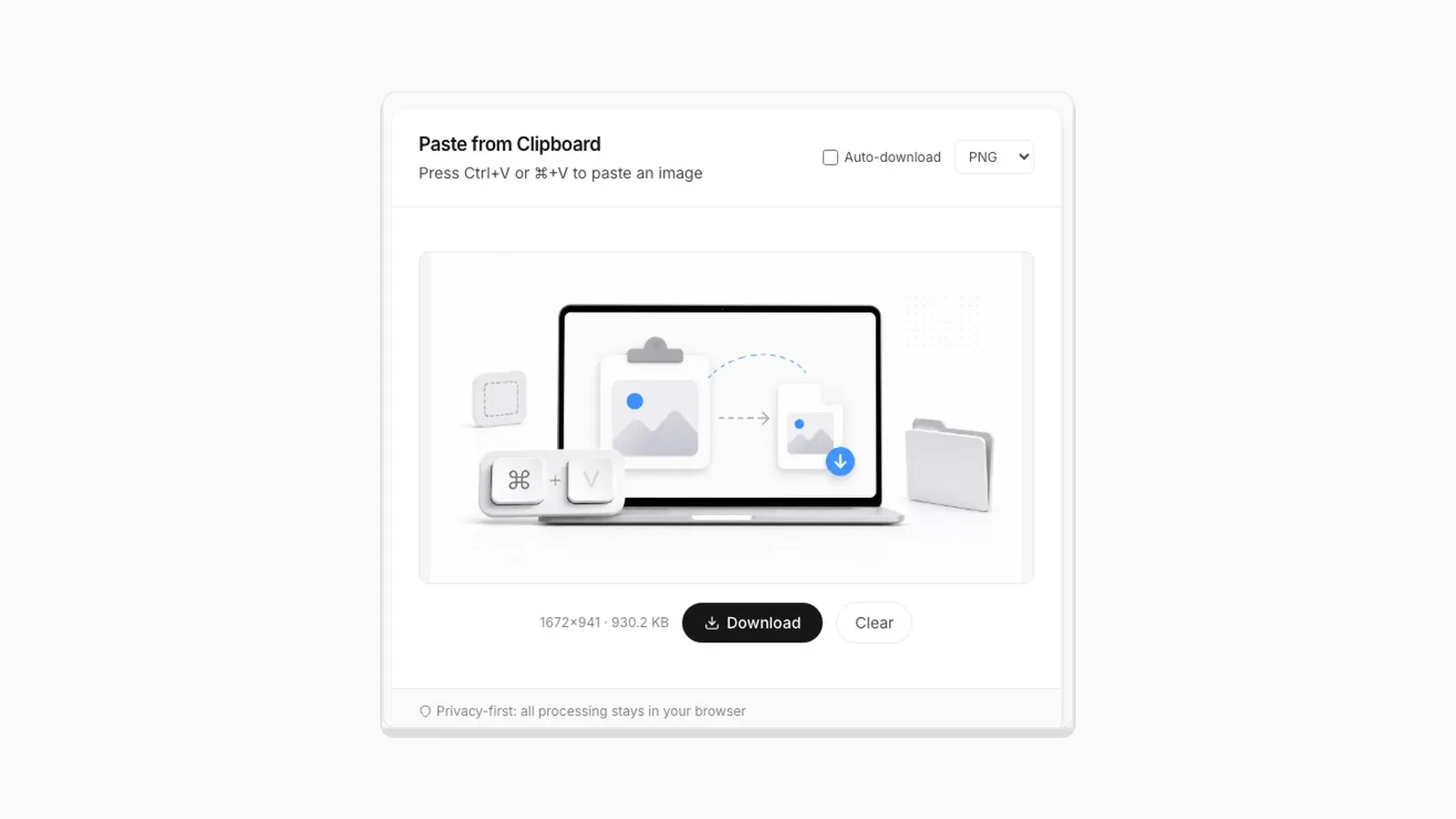 How to Convert a Screenshot to JPG (or PNG or WebP) How to convert a screenshot to JPG in your browser, with real tested file sizes for PNG vs JPEG vs WebP.
  SVG and ICO Quirks You Will Hit When Converting Images in a Browser Vector files and multi-resolution icons do not behave like PNG or JPG. Here is what actually happens when you convert them.