Image Compression Quality Settings Explained, With Real File Sizes

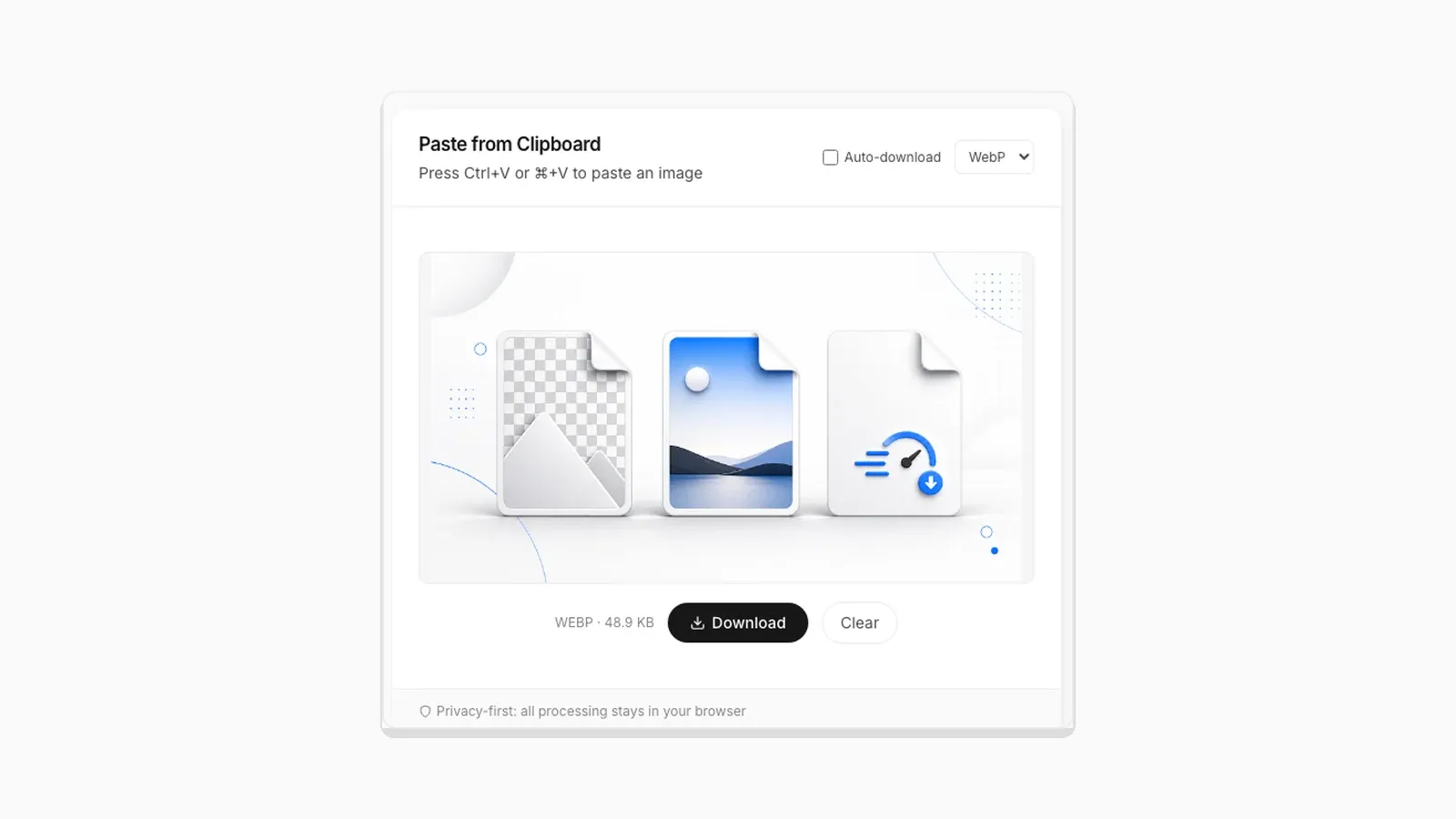
A "quality" slider in an image tool usually runs from 0 to 100. It gets treated like a magic dial: higher for better images, lower for smaller files. That is roughly right, but the number means something specific. Testing it on real files shows the tradeoff is not linear. Here is what quality actually controls, and what it did to two real files when I ran them through PasteDownloadApp's own conversion pipeline.
What the Quality Number Actually Does
For JPEG, the quality value controls how aggressively the encoder discards data during a step called chroma subsampling and DCT quantization. In plain terms, it controls how much fine detail in color and texture gets rounded away to make the file smaller. At quality 100, very little is discarded and the file is close to lossless size. At quality 50, entire bands of visual detail get flattened, and you start seeing blocky artifacts around sharp edges. WebP's lossy mode uses a conceptually similar quality scale, but a more efficient underlying codec. That is why it tends to produce smaller files than JPEG at a visually comparable quality level.
PasteDownloadApp does not expose an adjustable quality slider. It encodes JPEG and WebP output at a fixed 92% instead. That setting was chosen because compression artifacts are not visible on typical screenshots and photos at that level, and most people would not know how to tune a dial anyway. Everything below is what that fixed 92% setting actually produces.
Real Result 1: A Photo-Style Illustration
Source file: a 1672×941 gradient illustration PNG, 1.15 MB on disk. Converting it through the tool at the default 92% quality:
- JPEG: 128.3 KB, a 89% reduction from the source PNG.
- WebP: 48.9 KB, a 96% reduction, and roughly 62% smaller than the JPEG at the same quality setting.
Real Result 2: A Screenshot With Text
Source file: a 624×575 UI screenshot with sharp text and flat colors, 140.2 KB on disk. Same 92% quality setting:
- JPEG: 37.6 KB, a 73% reduction. Under close inspection, though, there is visible softening around the text edges, since JPEG's block-based compression struggles with high-contrast edges.
- WebP: 16.8 KB, a 88% reduction, and 55% smaller than the JPEG.
The pattern holds across both files. WebP consistently beat JPEG by roughly 55 to 60% at the same effective quality. Both formats also compressed the photo-style illustration by a much larger percentage than the text-heavy screenshot. That is because JPEG and WebP's lossy modes are fundamentally built around smoothing photographic gradients, not preserving sharp text edges.
How to Spot a Quality Setting That Is Too Low
You do not need to read a file size to know when compression went too far. Lossy formats fail in a few recognizable ways, and once you know them you will see them everywhere:
- Blocking: JPEG compresses the image in 8×8 pixel blocks. At low quality, the edges of those blocks become visible as a faint grid, most obvious in smooth areas like skies and skin.
- Ringing around text: Sharp, high-contrast edges such as black text on white produce a halo of speckled noise next to each letter. This is the softening mentioned in the screenshot test above, and it gets worse quickly below about 80.
- Color banding: Smooth gradients break into visible stripes of flat color because fine color steps are rounded to the same value.
- Smeared color detail: Thin colored lines, such as red underlines or colored code syntax, look blurry or bleed into their surroundings, because color is stored at lower resolution than brightness.
The quickest check is to zoom to 200% on the area with the most text or the finest detail. If it looks clean there, it will look clean at normal size.
Re-Saving a Lossy File Makes It Worse Every Time
Lossy compression throws information away, and it cannot get it back. If you open a JPEG, make a small edit, and save it as JPEG again, the encoder compresses an image that already has artifacts, and adds new ones on top. Do that a few times and the damage becomes visible even at high quality settings. This is often called generation loss.
The practical rule is to keep one lossless master, a PNG or the original screenshot, and export a JPEG or WebP from that master whenever you need a smaller copy. Do not convert JPEG to JPEG to "optimize" it. If you only have a JPEG to start with, converting it to PNG will not restore any quality either. It just stores the existing artifacts losslessly in a much bigger file.
A Simple Way to Pick a Format and Quality
If you do not want to think about any of this, use these defaults:
- Screenshot you will send or read closely: PNG. Text stays sharp, and flat UI colors compress well losslessly.
- Photo, banner, or anything with gradients: WebP at around 90. Much smaller than PNG and very hard to tell apart from the source.
- Photo that has to open everywhere, including older software: JPEG at around 90. Larger than WebP, but universally supported.
- Image with transparency: PNG or WebP. JPEG has no transparency, and PasteDownloadApp fills transparent areas with white when you choose it.
Why This Means PNG Is Still Right for Some Images
Neither JPEG nor WebP lossy mode can guarantee pixel-perfect text. That is not what the compression is designed to preserve. Say the image is going to be read closely: a screenshot of code, a diagram with small labels, a scanned document. In that case, PNG's lossless compression is worth the larger file size. If the image is a photo, a hero banner, or anything a viewer will not compare pixel by pixel against the original, WebP at high quality is very hard to distinguish from the source, at a fraction of the size. The full breakdown of when to use each format is in PNG vs JPG vs WebP.
Frequently Asked Questions
Can I set a custom quality percentage in PasteDownloadApp?
Not currently. The tool uses a fixed 92% quality for JPEG and WebP output, chosen to avoid visible artifacts without needing a setting most people would not know how to adjust.
Does a higher quality number always mean a bigger file?
Generally yes, for the same image and format, but the relationship is not linear. Going from 92% to 100% typically adds far more file size than it improves visible quality. That is why most encoders default somewhere in the low-to-mid 90s rather than 100.
Why did WebP lossless produce a bigger file than WebP lossy in my testing elsewhere?
Lossless modes preserve every pixel exactly, the same tradeoff PNG makes. That is why they are usually larger than lossy output at a high quality setting. WebP's advantage over PNG shows up more in lossy mode than lossless mode for photographic content.
Related Guides
 PNG vs JPG vs WebP: Real File Sizes Compared PNG vs JPG vs WebP for quality, transparency, and file size, backed by real measured results, not general claims.
  Why Re-Saving a PNG Can Make the File Bigger, Not Smaller A browser Canvas re-encode is not the same as a PNG optimizer. Here is the real size difference and why it happens.
  Favicon Size Guide: Every Size You Actually Need What size a favicon actually needs to be, from 16x16 browser tabs to 512x512 PWA icons, plus format and transparency guidance backed by real numbers.