How to Copy a Picture on a Mac and Save It as a File

Copying a picture on a Mac is one action: Cmd+C, or right-click and choose Copy. Getting that picture back out as an actual file on disk is a separate problem macOS does not solve for you, and it is not always obvious why. Copying does not save to Photos, does not create a file on your Desktop, and if you do manage to save it through Preview without paying attention, you can end up with a file five to ten times larger than you expected. That last part is not a vague warning: it comes from how macOS actually stores what you copy, which this guide covers before getting into the fastest way to turn it into a file.
How to Copy a Picture on a Mac
The copy step itself depends on where the picture is:
- From a webpage in Safari or Chrome: right-click the image and choose Copy Image. Be careful to pick that option and not "Copy Image Address," which copies the image's URL as text instead of the actual picture. It is the single most common reason a "copy" turns out to have copied nothing you can paste as an image.
- From Photos, Preview, or Finder: select the image and press Cmd+C, the same as copying text.
- As a screenshot, copied instead of saved: hold Control along with the usual screenshot shortcut. Control+Cmd+Shift+3 copies the whole screen, Control+Cmd+Shift+4 lets you drag a selection, and Control+Cmd+Shift+4 then Space captures a single window, in each case sending the image straight to the clipboard with no file written anywhere.
- Through the Screenshot app: press Cmd+Shift+5 to open the on-screen capture toolbar, click Options, and set "Save to" to Clipboard. Every capture you take afterward copies instead of saving, until you change it back.
Where a Copied Picture Actually Goes on macOS
This is the part most guides skip, and it explains a problem a lot of people run into without knowing why: macOS's clipboard, the pasteboard, stores images primarily as TIFF, not as PNG or JPEG. When you copy a picture, whatever app you copied it from typically hands the system a TIFF representation, and it is up to the app you paste into to ask for something else if it wants a different format. Microsoft Office apps, for instance, paste images as TIFF by default for exactly this reason. TIFF is usually uncompressed or only lightly compressed, so a picture that would be a few hundred kilobytes as a PNG can sit on your clipboard as several times that in TIFF form.
That matters the moment you try to save it. If you paste into an app that just writes out whatever the clipboard gives it, you get a needlessly large file without ever choosing that outcome. It is also why a browser-based paste tool behaves differently, covered below.
Turning a Copied Picture Into a File: Three Real Methods
Method 1: Preview's New from Clipboard
Open Preview, then File > New from Clipboard (or press Cmd+N after opening Preview from Spotlight). The copied picture opens as a new, untitled image. From there, use File > Export, not Save, so you get the format dropdown: choose PNG, JPEG, or another format explicitly, rather than letting Preview keep whatever representation it received. If you just press Cmd+S, you may still get a format picker in the save panel. It is easy to click through without noticing. The file can end up much larger than a plain PNG for no visible reason. One more thing worth knowing: the untitled image Preview creates is not saved anywhere until you explicitly save or export it, so closing the window without doing so loses it. If New from Clipboard appears greyed out, it usually means nothing image-shaped is currently on the clipboard, often because the copy did not actually succeed or something else was copied afterward.
Method 2: Paste into Pages, Notes, or Mail
Dropping the image into a document and exporting from there works, but it carries baggage. Pages and Notes keep the image inside their own document format. Getting a clean standalone file back out means exporting again and stripping the formatting. It is a reasonable option if you are already in one of those apps for another reason, not a good first choice.
Method 3: Paste Into a Browser Tool
This is where the TIFF issue above stops being a problem rather than something to route around. The Clipboard API that browsers use to read pasted content is required to support PNG, and Chromium-based browsers and Safari 13.1+ implement it that way: when you paste into a web page, the browser normalizes whatever the system clipboard held into a PNG before your page ever sees it. Practically, that means a tool like pastedownloadapp.com never has to deal with a bloated TIFF at all, regardless of what macOS was storing internally.
Copy the picture, open pastedownloadapp.com, press Cmd+V, and download it as PNG, JPEG, or WebP. The full walkthrough is in saving clipboard images without software.
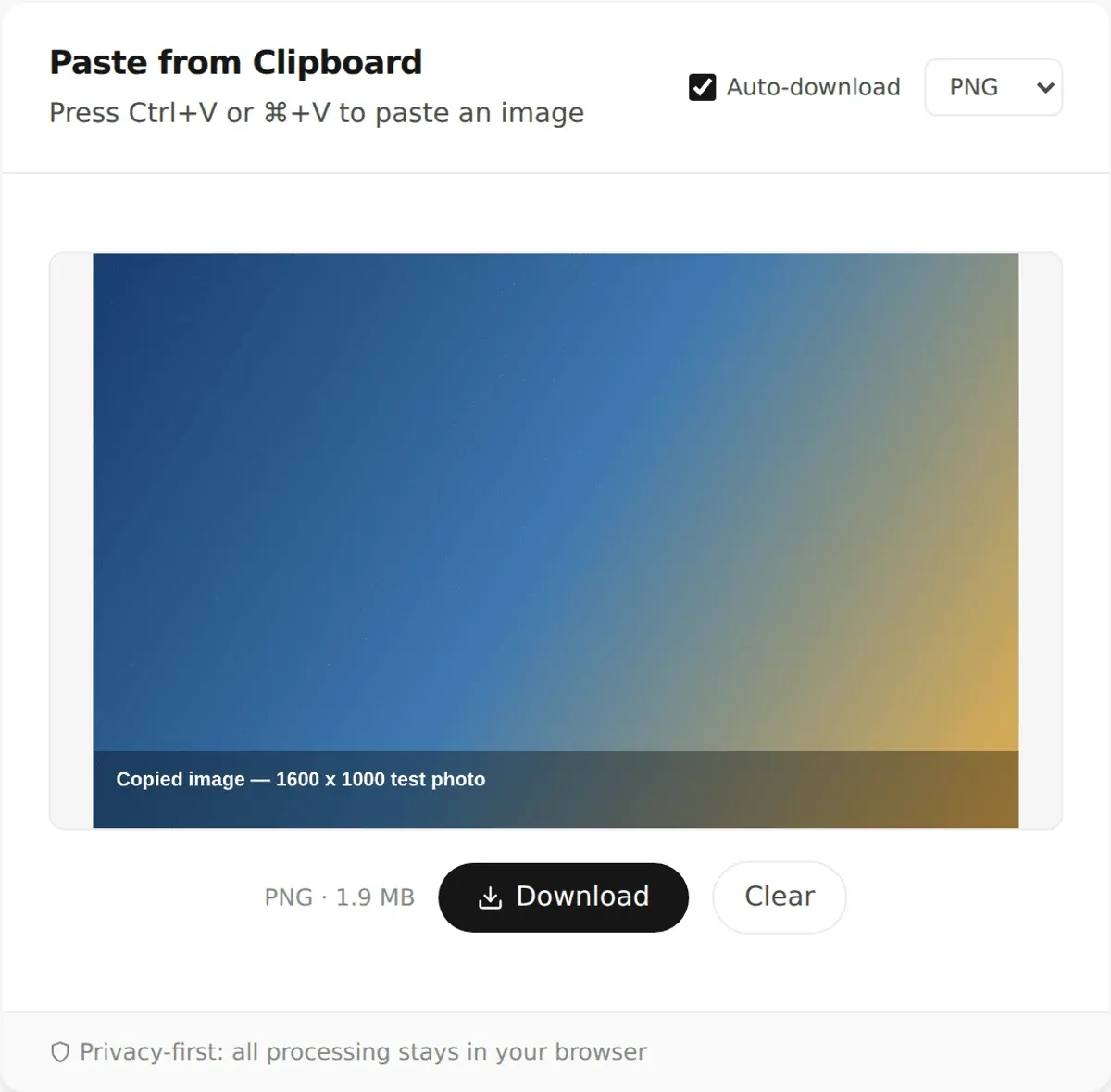
That screenshot is from a real run of the live tool: pasting a 1600×1000 test picture produced a clean 1.9 MB PNG, reported directly by the tool, not estimated. Whatever the picture looked like on your Mac's clipboard beforehand, PNG is what comes out.
Copying Images From Safari, Google Images, and Sites That Block It
Right-click Copy Image works on most ordinary webpages. Two situations make it less reliable:
- Google Images specifically: the preview panel you get after clicking a thumbnail sometimes only exposes that lower-resolution preview to Copy Image, not the full-size original. If the copied result looks softer than expected, open the image in its own tab first (Google's "Visit" or the site's own page), then copy from there.
- Sites that disable right-click or serve images as CSS backgrounds: Copy Image will not appear at all, or copies nothing usable. A clipboard-targeted screenshot of just that image, using Control+Cmd+Shift+4, gets you a usable picture when the context menu does not cooperate. It will not be the original file, but it will be pixel-accurate to what is on your screen.
Does Copying a Picture on a Mac Save It to Photos?
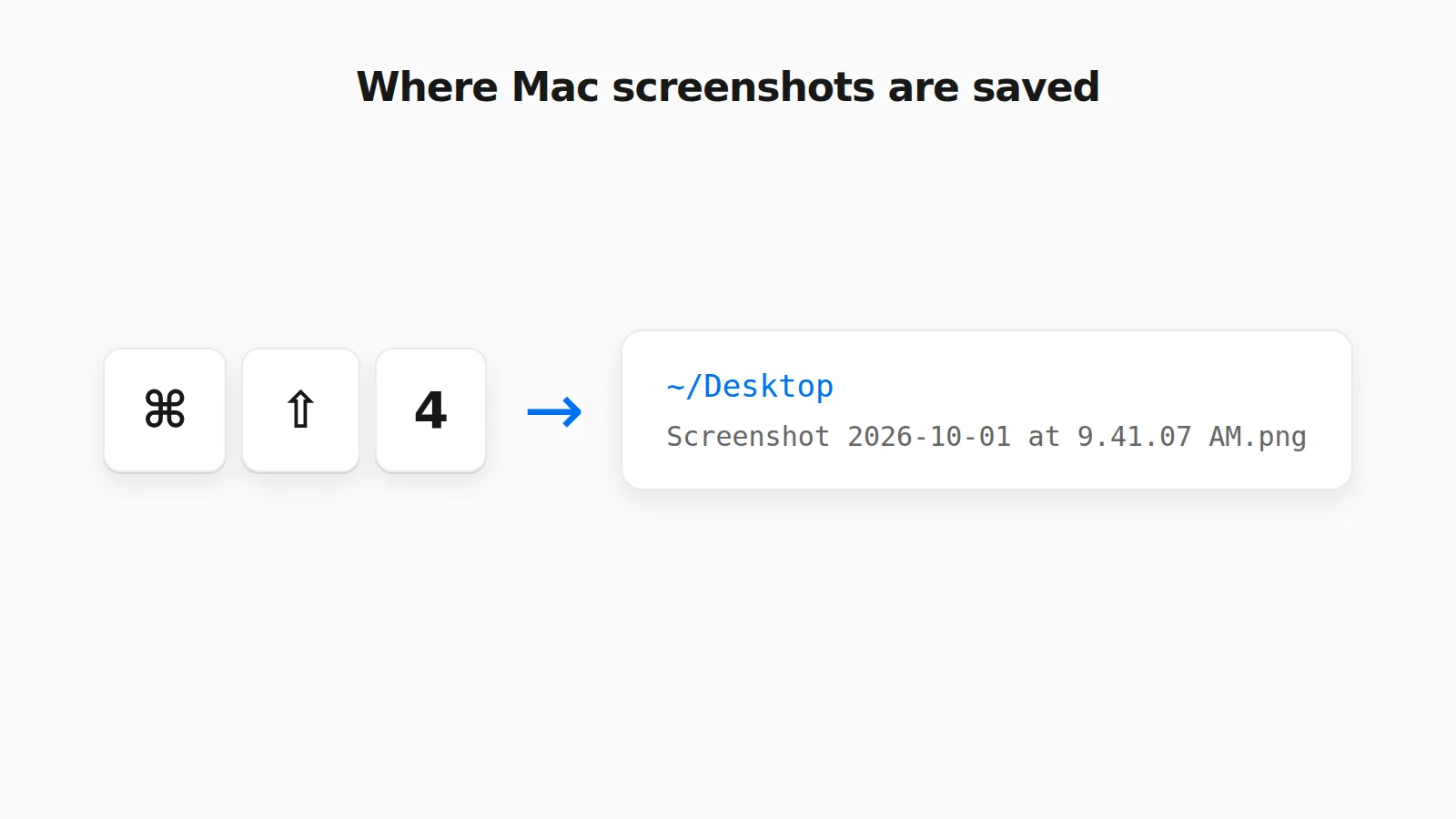
No, and this is a common source of confusion carried over from iPhone habits. On iOS, a screenshot is automatically saved into the Photos app. On a Mac, a screenshot without Control held saves a file to your Desktop, not to Photos. A plain Cmd+C or right-click Copy Image never touches Photos or your Desktop. The picture exists only on the clipboard until you paste it somewhere and save it. If you want it in Photos, you have to import it there yourself.
Not on a Mac?
The same method works elsewhere. See saving a screenshot as a file on Windows or saving a clipboard image on Android vs iPhone. If your screenshot went to a file, see where Mac screenshots go.
Frequently Asked Questions
Why is my copied Mac image a TIFF instead of a PNG?
Because macOS's clipboard stores copied images as TIFF by default, and it is up to whatever app you paste into to request a different format. Preview's Export dialog lets you choose PNG explicitly; a browser-based tool converts it to PNG automatically, since that is the format the web Clipboard API guarantees.
Why is "New from Clipboard" greyed out in Preview?
It means Preview does not currently see image data on the clipboard, usually because the copy did not succeed or something else, like text, was copied afterward. Re-copy the picture and try again.
Does copying a picture on a Mac save it to Photos?
No. Copying, with Cmd+C or right-click Copy Image, only puts the picture on the clipboard. Nothing is saved to Photos or your Desktop until you paste it somewhere and save that result yourself.
Why does "Copy Image" not appear when I right-click a picture?
The site has disabled right-click context menus or is serving the image as a CSS background rather than a normal image element. A clipboard-targeted screenshot (Control+Cmd+Shift+4) works around it.
Is there a Cmd+V shortcut to save an image directly to a file on Mac?
Not natively; macOS has no built-in paste-to-file command. With pastedownloadapp.com open, Cmd+V pastes the clipboard image into the tool and one click downloads it, which is the closest equivalent available.
Does pastedownloadapp.com store my images?
No. Conversion happens entirely in your browser. Images never leave your device, and nothing is uploaded to a server.
Related Guides
 How to Save a Screenshot Directly as a File Without Opening MS Paint Turn Print Screen or Snipping Tool captures into PNG or JPG files without opening an editor.
 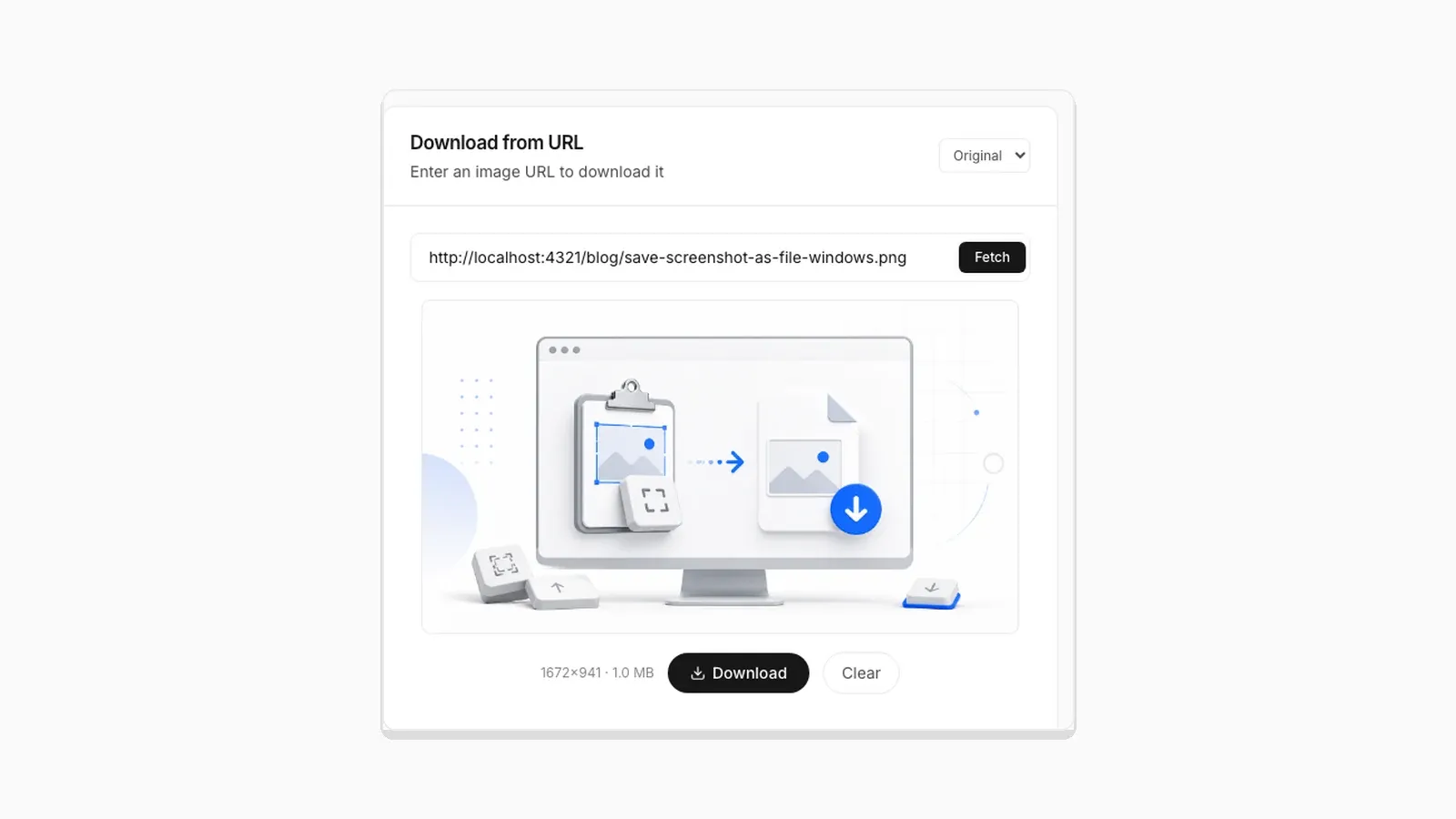 Why Clipboard Image Paste Behaves Differently in Chrome, Firefox, and Safari The Clipboard API is not implemented the same way everywhere. Here is what actually differs between browsers.
 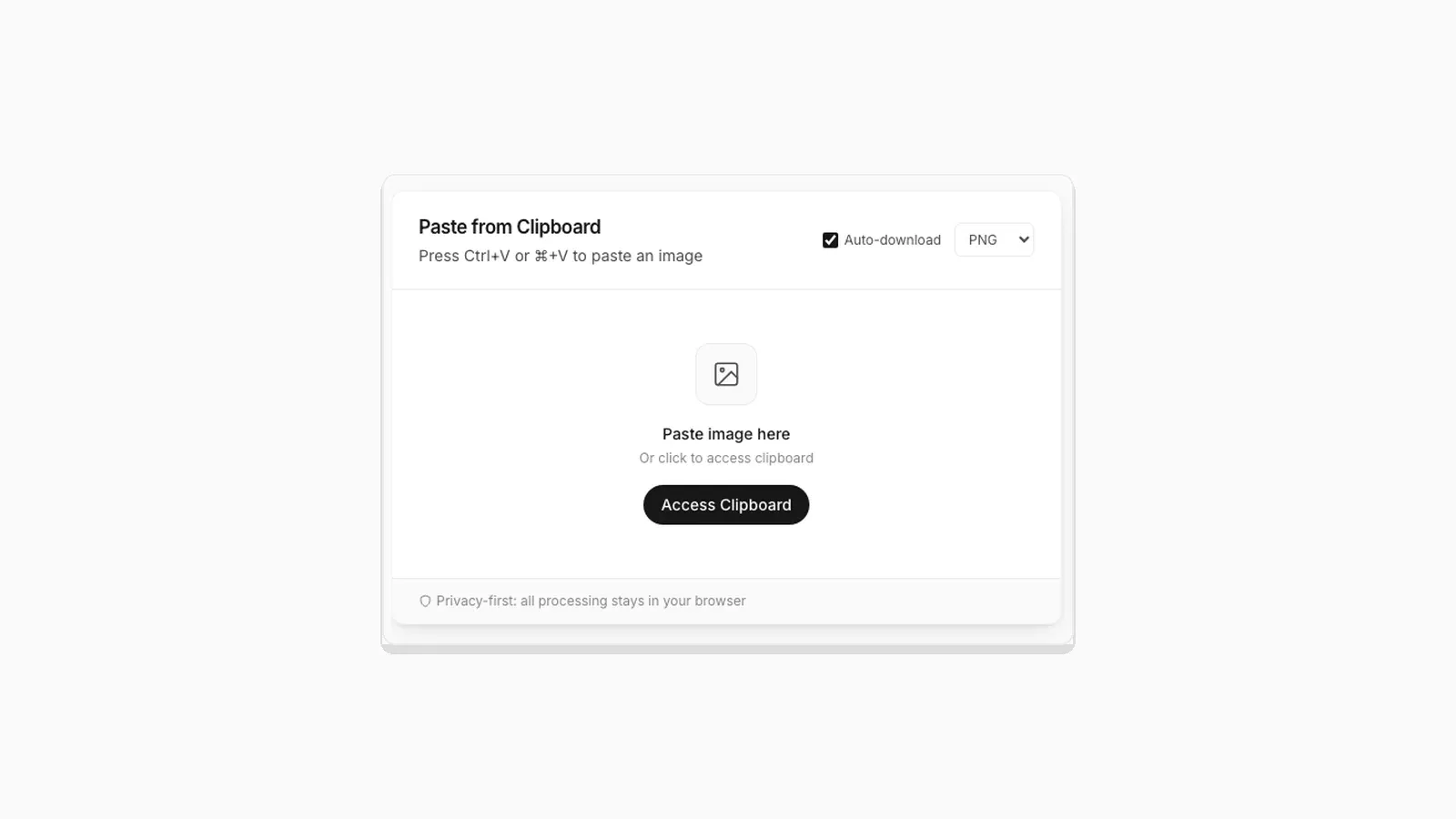 Why "Access Clipboard" Fails, and How to Fix It Clipboard read permission errors explained: browser support, HTTPS requirements, and permission prompts.
  Where Do Screenshots Go on Mac? How to Find Them and Change the Folder Mac screenshots save to the Desktop by default, but not always. Find a missing one, change the folder, or rescue a clipboard-only capture.