How to Save a Screenshot Directly as a File (Without Opening MS Paint)

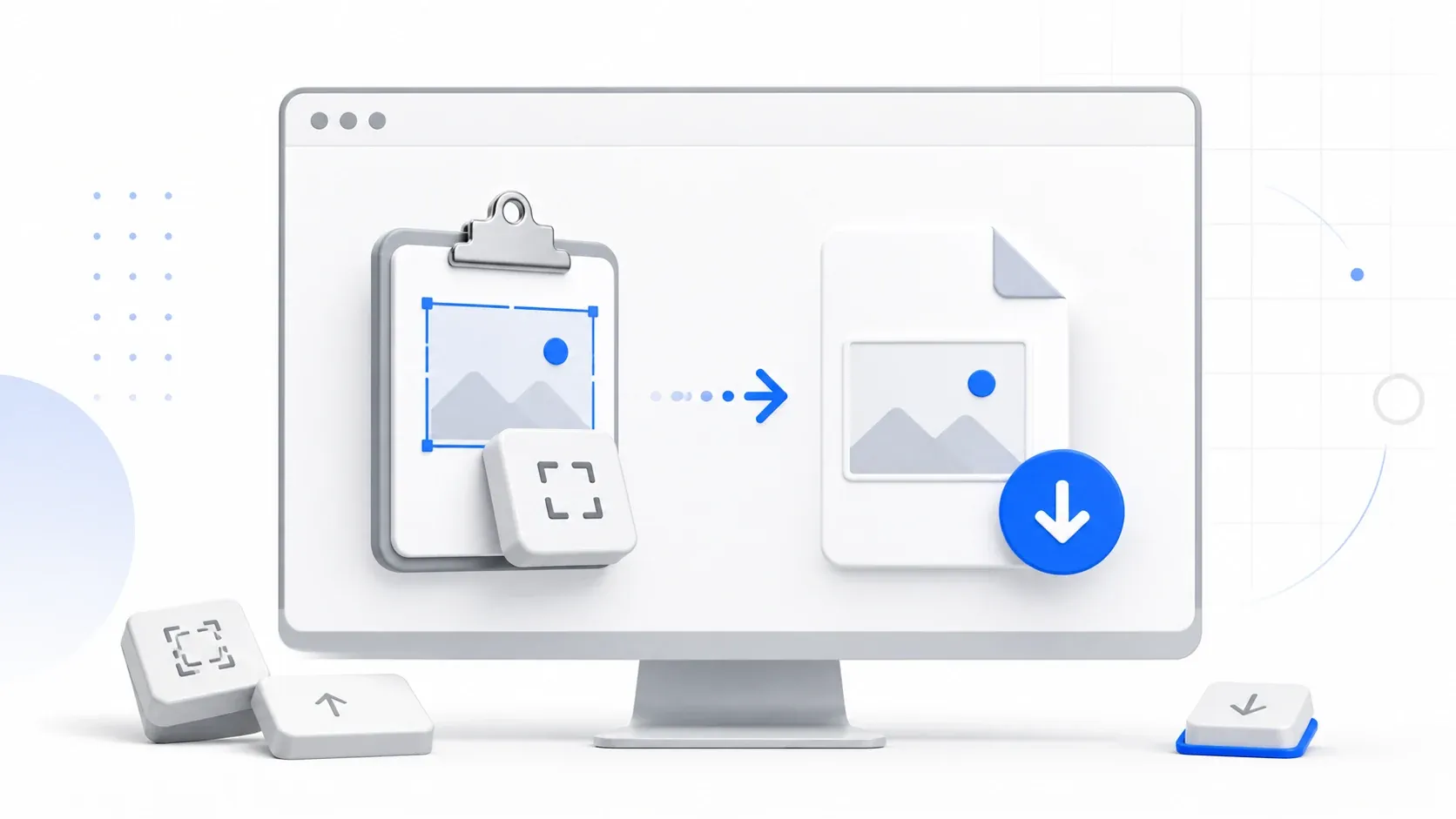
Whether a screenshot needs this workaround at all depends on which shortcut you used. Windows already saves some captures as files automatically and leaves others stuck on the clipboard, and most guides don't draw that line clearly. Here's exactly which is which, plus the fastest way to turn a clipboard-only capture into a PNG or JPG without opening Paint. For non-screenshot clipboard images, see the broader guide to save clipboard images without software.
Which Screenshots Windows Already Saves as Files
Three shortcuts, three different outcomes:
- PrtScn alone copies the full screen to the clipboard only. No file is created anywhere.
- Win + PrtScn both copies to the clipboard and automatically saves a PNG to Pictures > Screenshots, no extra steps. If you only need a full-screen capture, this already does what you're looking for; nothing below is necessary.
- Win + Shift + S (Snipping Tool's selection overlay) copies your selected region, window, or screen to the clipboard and shows a notification in the corner. Click that notification within a few seconds to open the capture in Snipping Tool and save it. If you miss it, the capture stays on the clipboard with no file.
So the real gap is region and window captures taken with Win+Shift+S, the most commonly used method precisely because it lets you select an area first. That is what actually needs a save step, and it is what the rest of this guide is about.
Multi-Monitor and Multi-Window Captures
On a multi-monitor setup, PrtScn and Win+PrtScn capture your whole desktop across every connected display as one combined image. They do not capture only the monitor your cursor is on. Two side-by-side 1080p monitors produce one roughly 3840×1080 file. If that is wider than you wanted, two options avoid it. Alt+PrtScn captures only the active window, however many monitors you have. Win+Shift+S lets you drag a selection over a specific area, even across two screens. For a single clean shot of one window, Alt+PrtScn is the fastest option and one most guides skip entirely.
Native Fix: Turn On Snipping Tool's Auto-Save
Recent versions of Snipping Tool (11.2209.2.0 and later, standard on current Windows 11) can save every capture as a file automatically, not just full-screen ones. Open Snipping Tool, go to its settings, and turn on auto-save. From then on, every region, window, or full-screen capture is saved to Pictures > Screenshots. You do not need to click the notification. If you want a permanent native fix rather than a per-capture workaround, this is it, and it costs nothing to turn on.
The browser method below is still worth knowing for three reasons. It works on a machine where you cannot change that setting. It lets you choose PNG, JPEG, or WebP instead of always PNG. And it works the same way on Mac or Linux.
Turning a Clipboard-Only Capture Into a File
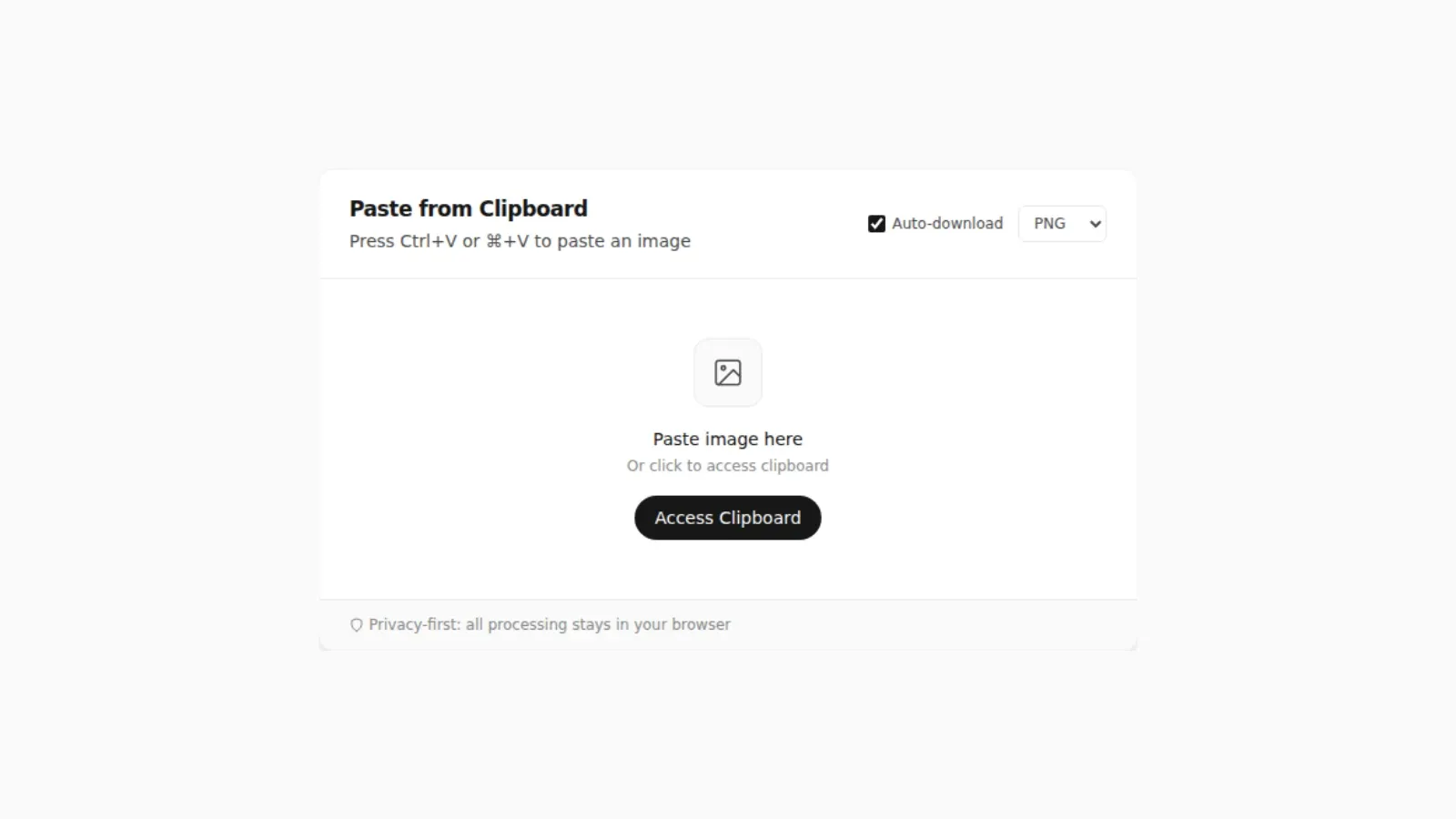
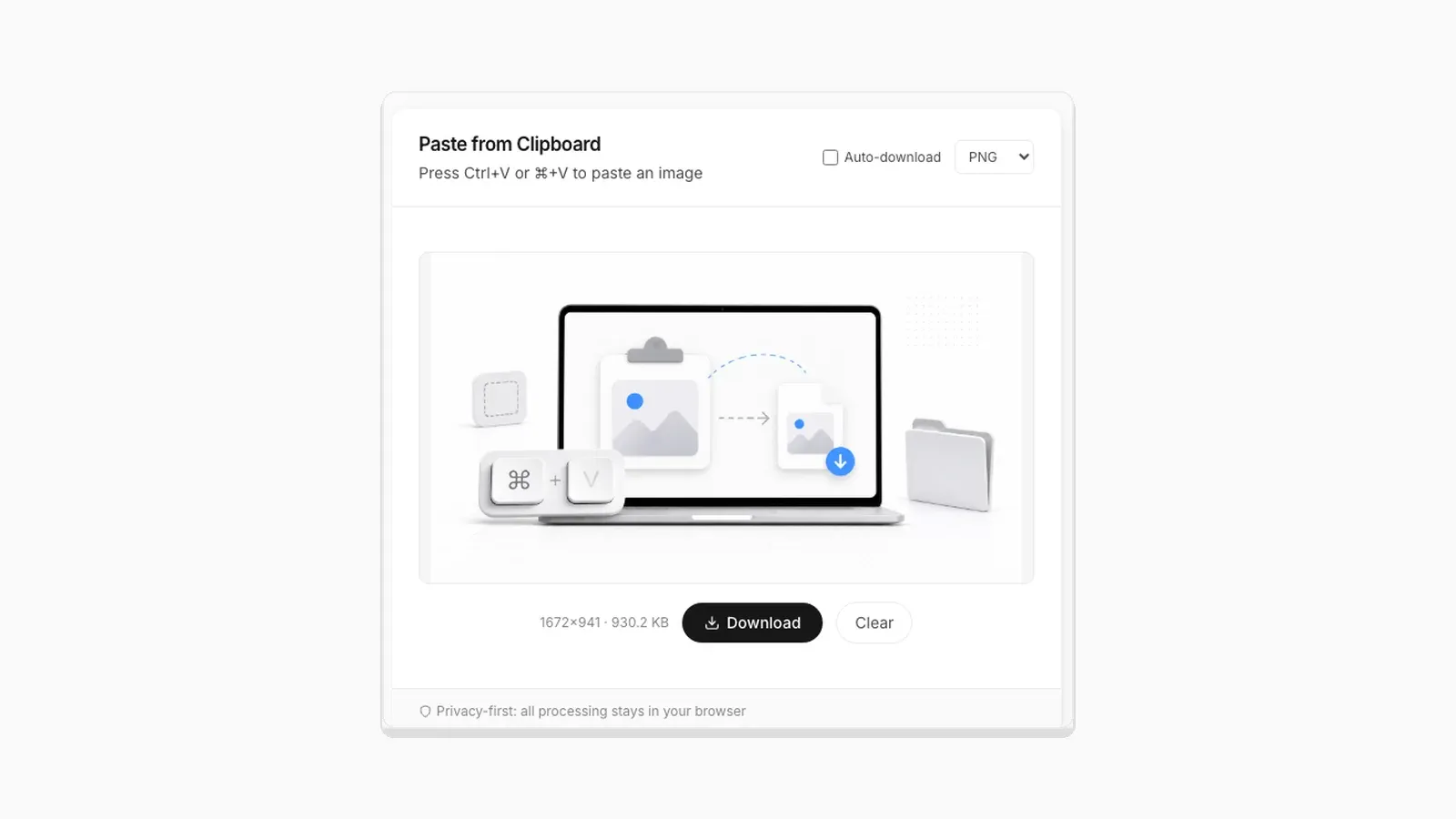
Take the screenshot with Win + Shift + S or PrtScn, open pastedownloadapp.com, press Ctrl + V, and click Download as PNG, JPEG, or WebP. The general steps are in saving clipboard images without software.
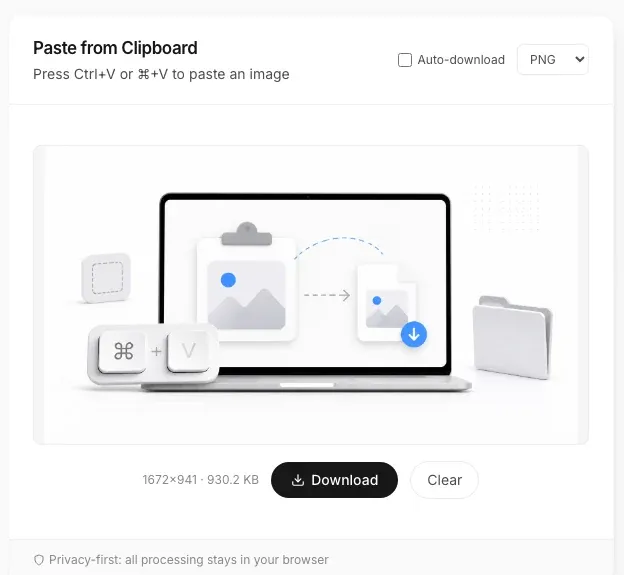
That is a real paste, not a mockup. The info line under the preview shows the size the browser measured: 930.2 KB. Nothing is uploaded to get that reading; it happens entirely in the tab you are already looking at.
PNG or JPG for Windows Screenshots?
Use PNG for text, menus, and code, and JPG for photos or tight upload limits. The PNG vs JPG vs WebP comparison has real sizes.
Third-Party Screenshot Tools, Honestly
Greenshot and Lightshot are the two most often recommended third-party screenshot apps for Windows. Both do more than Snipping Tool. They have built-in annotation, they auto-save to a fixed folder, and they let you set the format. The tradeoff is that they are installs, which defeats the point if the goal was avoiding an extra app in the first place. They are worth it if you take screenshots all day and want annotation tools. For occasional captures, the native shortcuts plus a browser paste do the same job with nothing to install.
What About Mac or Mobile?
See copying and saving a picture on Mac or saving a clipboard image on Android vs iPhone.
Frequently Asked Questions
Does Windows save screenshots as files automatically?
Only some of them. Win+PrtScn does, saving a full-screen PNG to Pictures > Screenshots automatically. PrtScn alone and Win+Shift+S do not, unless you enable Snipping Tool's auto-save setting or manually save from the notification it shows after a capture.
How do I make every screenshot save automatically on Windows 11?
Open Snipping Tool, go to Settings, and turn on auto-save. Every capture, including region and window snips from Win+Shift+S, then saves to Pictures > Screenshots without you clicking anything further.
How do I save a screenshot as a PNG without Paint?
Copy your screenshot to the clipboard, open pastedownloadapp.com, paste with Ctrl+V, and choose PNG before clicking Download.
Why does my screenshot include both monitors when I only wanted one?
PrtScn and Win+PrtScn always capture your full virtual desktop across every connected display, not just one monitor. Use Alt+PrtScn to capture only the active window instead, or Win+Shift+S to drag a custom selection.
Where do saved screenshots actually go on Windows?
Files saved automatically, or through Snipping Tool, land in Pictures > Screenshots by default. For the fuller picture of where clipboard-only captures live before you save them, and how that differs by OS, see where clipboard images and screenshots actually go.
Related Guides
 How to Download a Copied Image on Mac Without Saving to Photos Save clipboard images from your Mac directly as files without Photos, Preview, or extra steps.
  Where Do Screenshots Go on Windows, Android, and iPhone? Screenshots and copied images do not behave like normal files until you save them. Here is where they go on Windows, Android, and iPhone.
  Why Re-Saving a PNG Can Make the File Bigger, Not Smaller A browser Canvas re-encode is not the same as a PNG optimizer. Here is the real size difference and why it happens.